QuillHubQuillHub
RU

Webex meeting recorder: audio and AI transcript

QuillHub Desktop records the audio of a Cisco Webex meeting on your computer. No bot joins the call, and you don't need to be the host or have a paid Webex plan. After the call, your account has the transcript by speaker with timestamps and a summary with decisions and tasks.

  • No bot in the call
  • macOS 14.4+ and Windows 10+
  • 14 days of full access, no card
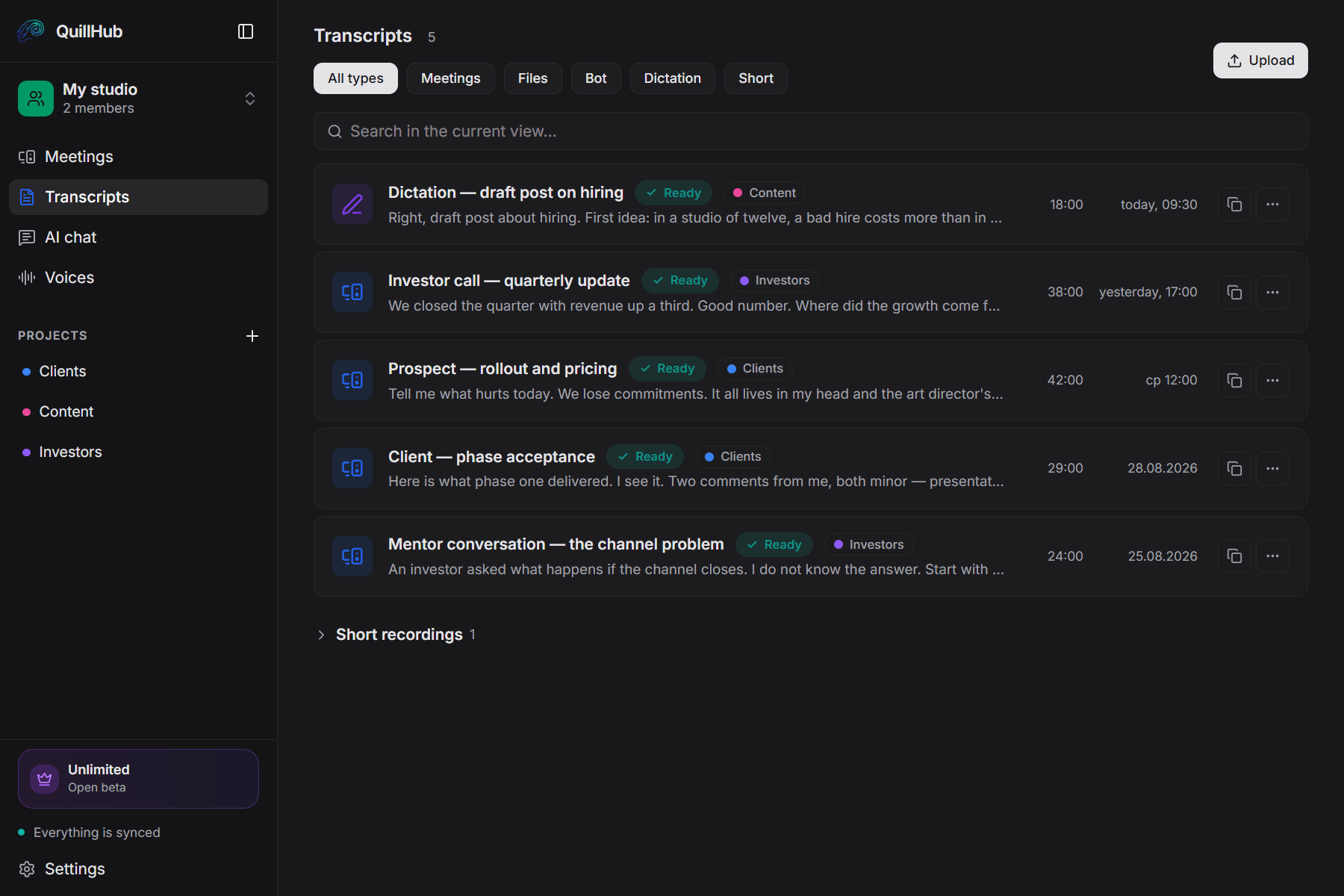
List of recorded meetings in the QuillHub Desktop app

Sample transcript

What an 18-minute Webex meeting looks like as text

Real QuillHub output with no manual edits: 18 minutes of recording, 4 voices separated automatically, every line with its own timestamp. Above the text: chapters and a summary. Switch the tabs to see each layer.

Autumn Drive Water & Sewer Improvement — Design Meeting (Project 102785-2)00:00 / 17:57 · Project manager, Meeting host, Resident, Resident 2Ready · 4 documents
  • Resident13:06

    Yes, on the diagram, there's also going to be gas work being performed on Autumn and Autumn Court on the north side. It was— I'm sorry, did you make a statement?

  • Project manager13:44

    No, the answer is no, because normally we send the plans for utility clearance and we like them to be out of the project when we start construction.

  • Project manager14:01

    Because construction is going to start next year, so normally they start way ahead of us to do the replacement, whatever they need to repair on the gas lines.

  • Resident14:10

    Okay, so they'll do all that work before you get started. Thank you.

  • Resident 214:44

    Are we going to get an email confirming a lot of this, all these slides, or—

  • Meeting host16:56

    When do you, when do you expect construction to start? I'm sorry, I missed that part.

34 more turns, each with a speaker label and a timestamp; click a timestamp to jump the audio there

Speech split by person

Free speech-to-text hands back one paragraph for the whole recording. Here the voices are separated and every turn carries its own timestamp, so the text is readable straight away.

  • 4 voices separated automatically, no setup
  • Project manager — 71%, Meeting host — 21%, Resident — 4% of the time
  • Export to TXT, DOCX, SRT, and VTT
  • 0:00Introduction and Meeting Logistics1 min
  • 0:39Agenda and Project Team1 min
  • 1:13Project Overview and Project Area1 min
  • 2:31FAQs: Project Purpose, Service Lines, and Access4 min
  • 7:00FAQs: Property Impacts, Irrigation, Watering Rules, and Traffic3 min
  • 10:17Timeline, Resources, Contacts, and Reporting2 min
  • 12:17Opening Remarks and Start of Q&A1 min
  • 13:04Discussion of Utility Coordination (Gas and Sewer Work)2 min
  • 14:42Project Materials, Links, and Contact/Email Procedures2 min
  • 16:36Questions and Construction Schedule1 min
  • 17:12Next Steps and Closing Remarks1 min

Each chapter has its own timestamp and length

The whole 18 minutes at a glance

Chapters follow the meaning, not the pauses, so you can see what each part of the recording covers and jump to the one you need.

  • 11 chapters across 18 minutes
  • Each chapter links to its place in the recording

Design meeting for the Autumn Drive Water and Sewer Improvement Project (Project 102785-2).

  • Project replaces sanitary sewer mains and water mains in the Autumn Drive / Autumn Court area (Project 102785-2).
  • City replaces city-owned service line to the property line and the meter; private plumbing (meter to building) is homeowner responsibility.
  • Temporary above-ground water lines will be used during construction; brief 15–30 minute outages occur during service transfers.

Decisions the AI pulled out

  • City will replace city-owned water service lines to the property line, and replace water meters and meter boxes; private plumbing remains homeowner responsibility.01
  • Sanitary sewer service will not be interrupted during construction; new sewer cleanouts will be installed at property lines.02
  • Contractor is responsible for repairing any property damage caused by construction and will document pre-construction conditions.03
  • Temporary above-ground water lines will be used during construction; water will be shut off for 15–30 minutes during service transfers and continuous flushing/sampling is required before connection.04

No need to replay 18 minutes

The summary is built from the broadcast itself: key ideas, numbers and the decisions that were actually announced. It can go into a team chat as it is.

  • 4 decisions pulled from the conversation
  • 8 key points in the full summary
One-page digest

Project area bounded by Autumn Court (N), Bel Air Circle (E), Winslow Drive & Overton Park (S), Overton Park Drive East (W).

from the recording
Article draft

“Autumn Drive Water & Sewer Improvement — Design Meeting (Project 102785-2)”: water main replacement, sanitary sewer, temporary water service

from the recording
Follow-up email

What was discussed, what was decided, what happens next

template
Task list

Update project page and send link to Overton Park Neighborhood Association board members; Post YouTube video of the WebEx meeting and upload PowerPoint summary…

from the recording
Ask the recording

“Send the project page link and meeting video to Overton Park board (Project 102785-2)”: the chat answers from the text and gives the timestamp

chat
Your own prompt

A CRM note, a post, talking points — or any format you need

anything
  • CCTV inspection
  • Easement
  • Sewer cleanout
  • Temporary water line
  • Bacteriological test
  • Private plumbing

Every AI action is included in the Unlimited plan — no credits per click.

Finished documents on top of the text

The transcript is only the start. From one recording you can build a digest, an article draft or an email — or describe a format of your own.

  • Ready-made templates and your own prompts
  • Chat over the recording: ask anything about the text
  • 6 terms with definitions
Upload your recordingSee the full example(opens in a new tab)60 free minutes when you sign up · No card required

Example: WebEx community design meeting for the Autumn Drive Water and Sewer Improvement project, City of Fort Worth, YouTube, license CC BY 4.0. Transcript, chapters, summary and key points by QuillHub.

How it works

How to record a Webex meeting and get the transcript

QuillHub Desktop records the meeting audio, and QuillHub turns it into text and a summary. No bot joins the call, and the host doesn't have to give you any rights.

  1. 1

    Install QuillHub Desktop

    Download the app for macOS or Windows and sign in. On a Mac, allow system audio recording once. The app asks for screen recording access only to hear the other participants; it never records the screen.

  2. 2

    Join your Webex meeting

    When Webex turns on the microphone, the app shows “Auto-starting recording for Webex in 5s” with a Cancel button, then records the audio and stops on its own after the call. Webex in a browser tab is caught too, as a meeting in the browser. If you see a question instead of a countdown, press Always, and Webex calls will start recording by themselves from then on.

  3. 3

    Open the transcript

    Calls longer than 5 minutes upload by themselves. A few minutes later, open the meeting: lines are split by speaker, each with a timestamp, next to a summary with decisions and tasks. Export to DOCX, TXT, or Markdown, or send the meeting to a colleague as a link.

Already recorded

Have a Webex recording? Upload the file

Download the MP4 from your Webex site or from the host's link, or take it from your Documents or Home folder, and upload it as a file: Webex recording links can't be pasted. Recordings up to 10 hours, files up to 5 GB.

60 free minutes when you sign up · No card required

  • Google Drive
  • Direct file link
  • Files MP4, WAV, MP3, M4A, WEBM

After the call

What you get from a recorded Webex meeting

A Webex recording is an MP4 on the host's site or in someone's Documents folder. A transcript in your own account shows what was agreed after a minute of reading.

Transcript by speaker

Speaker recognition is always on for meetings. Name each participant once, and the name appears next to every line of theirs in the recording.

Timestamps

Every line has its time. Find the line where a date was named and play the audio from that second instead of scrubbing through an hour of recording.

Summary, decisions, tasks

For meetings longer than 3 minutes, AI writes a summary: what was discussed, what was decided, which tasks came up, and who owns them when a name was said out loud.

Chapters for long meetings

A 90-minute planning session is split into chapters by topic, each with a title and start time. Each agenda item is one click away in the table of contents.

Follow-up email and task list

The Follow-up and Tasks buttons in the recording's AI chat draft an email to the attendees and a list of action items. Meeting minutes take one prompt: “write the minutes with decisions and deadlines.”

Questions to the recording

The AI chat answers from the meeting text, for example “which date did the contractor give?” Each answer links to the recording it came from, so it is easy to check against the transcript.

AI for meetings

Ask the Webex recording what the vendor promised

The transcript is ready. Ask the recording a question, and the answer comes back from the meeting text.

Webex: data center migration review with the vendor · 5 speakers1:04:20
What did the vendor commit to for the cutover weekend?

An on-site engineer from Friday 6 p.m. to Sunday noon, a rollback plan sent by Wednesday, and a status call every four hours during the move. Pricing for the extra weekend hours will come in a separate quote.

Meeting · 42:15 — the fragment is lit on the track
Did we discuss the rollback plan in an earlier meeting?

Yes, at the kickoff three weeks ago. Then the team only asked for a draft. In this meeting the vendor agreed to a deadline and named who will sign it off.

2 meetings in the archive
kickoff · rollback draft
review · deadline agreed
01

Questions across all meetings

The chat answers from every call in a project at once, and the answer shows which recordings it came from.

02

Follow-up and tasks

Summarize, Follow-up, and Tasks buttons in the recording's chat, or your own prompt, such as meeting minutes.

03

Access for your AI agents

The MCP server lets Claude and other AI agents work with your meeting transcripts directly.

Every AI action is included in the Unlimited plan — no credits per click.

Ways to record

How to record a Webex meeting: seven ways compared

Webex records meetings itself, but only the host or a cohost can press Record, and cloud recording needs a paid plan. QuillHub doesn't record video. QuillHub Desktop records the meeting audio, and the web app turns any Webex recording into text. Cisco's terms are taken from the Webex Help Center as of November 2026.

MethodWhat gets recordedDo participants knowWhere the recording ends upLimits
Webex: record in the cloudParticipant audio, video, and shared content, as MP4Yes, a recording indicator shows at the top rightYour Webex site (Recordings in User Hub). The host gets an email with the linkHost or cohost with a paid plan; not on the Free plan. Attendees can't record. Can take up to 24 hours to appear
Webex: record on your computerAudio, video, and shared content, as MP4. No chat, participant list, or transcriptYes, the same recording indicatorBy default, Documents on Windows and the Home folder on a MacHost only, from the desktop app, if the site admin allows it. Sound only with Computer audio, not with Call me or Call in
Webex recording transcriptsText of a cloud recording, which you can search and editYes, it is made from the recordingNext to the recording on your Webex siteYour site admin turns it on. Not available on the Free plan
Cisco AI AssistantMeeting summary, action items, and transcript, without a recordingYes, an audio and visual notification when it startsMeeting recap in the Webex appOnly on the Webex Suite meeting platform, after an admin turns it on. By default only the host and cohosts start it
Screen recorderVideo of the screen; the audio depends on the app and its settingsNo, Webex doesn't know about itThe folder the system or the app setsNot every recorder captures the other participants' audio. Test it before an important call
QuillHub DesktopMeeting audio: the other participants and your microphone. No video, no screenNo bot and no indicator: tell the participants yourselfYour QuillHub account, with a transcript by speaker and a summaryNeeds a computer with macOS 14.4+ or Windows 10+. Doesn't work on phones
Upload a file to QuillHubTranscript by speaker, timestamps, summary, and chapters from the Webex MP4Depends on how the file was recordedYour QuillHub account; export to DOCX, TXT, Markdown, SRT, VTTFiles up to 10 hours and 5 GB. A Webex recording link won't work: download the MP4 and upload the file

Which Webex meetings are worth recording

Long Webex meetings with several sides, where someone will ask later what exactly was agreed, are better kept as text.

Meetings someone else hosts

A client, a vendor, or a government agency sends the Webex invite, and as an attendee you can't press Record. Desktop records the audio on your computer. Say at the start of the call that you're taking an audio recording for notes.

Public and community meetings

Cities and agencies hold project meetings in Webex and post the recordings later. With the transcript, a resident or a reporter finds the answer to their street's question without watching the whole video.

Calls on the Webex Free plan

The Free plan has no cloud recording and no recording transcripts. A local MP4 takes room on the host's laptop and has no text. The QuillHub transcript stays in your account until you delete it.

Training and onboarding sessions

A two-hour product training becomes notes with chapters. A new hire reviews the part they need from the text instead of replaying the session.

Vendor and procurement calls

Requirements, prices, and deadlines come up in one long call with several people. The summary keeps who promised what, and the transcript keeps the exact wording.

Team standups and reviews

A recurring Webex meeting covers the same projects every week. A summary of each one shows what has moved since the last call.

Who it's for

Who needs Webex meetings as text

Webex meetings are often hosted by the bigger side: the client, the agency, the enterprise. The person who needs the notes is usually an attendee.

Sales teams

Enterprise demos you don't host

Large buyers invite you to their own Webex, where the Record button belongs to their host. You run the demo, and the needs, objections, and next step are collected from the text afterwards.

  • A CRM note from one prompt to the recording
  • No bot in the meeting, the buyer sees only people
  • Ask across every call with one account
QuillHub for sales teams

Project managers

Status meetings with decisions kept

The client hosts the weekly call and keeps the recording. Desktop records the audio on your side, and the summary keeps decisions and owners, when they were named.

  • A task list after every meeting with the Tasks button
  • Ask the archive: “when did the client confirm the date?”
  • A transcript link for those who missed the call
QuillHub for project managers

Customer success

What was promised to each account

Quarterly reviews and escalations run in the customer's Webex. The text of each meeting shows what was promised and when.

  • A follow-up email with the Follow-up button
  • Ask the archive: “what did we promise this customer?”
  • The customer's line with a timestamp when it matters
QuillHub for customer success

HR and recruiting

Interviews without typing answers

Panel interviews in Webex run back to back. A transcript with a summary keeps each candidate's answers separate for the hiring manager.

  • Interview summary: experience, expectations, start date
  • Compare candidates with one question in the chat
  • A transcript link for the hiring manager
QuillHub for HR

Journalists and researchers

Public meetings you can quote

City councils, agencies, and committees hold meetings in Webex. The transcript keeps the exact words with the time they were said.

  • Transcript by speaker with timestamps
  • Chapters to find one agenda item
  • DOCX export for your notes
QuillHub for media

Students and trainees

A Webex class turns into notes

Classes and trainings in Webex are easy to miss or forget. The text with chapters and a short summary replaces replaying 90 minutes of video.

  • Session summary and chapters by topic
  • DOCX export for handouts
  • The first 60 minutes are free

Tips

How to record a Webex meeting so the transcript comes out right

Transcript accuracy depends on the audio. Here is what helps before the meeting and after it.

  • Tell people you're recording

    Webex shows a recording indicator for its own recording; QuillHub Desktop shows nothing, so say it at the start and the consent is on the recording. Recording laws differ by state and country, and some require every participant's consent. If someone objects, don't record.

  • Ask the host for the MP4

    In Webex, attendees can't record, and the recording belongs to the host. If you need text from a meeting that was already recorded, ask the host for the file or the download, then upload it here.

  • Choose Computer audio

    A Webex recording on your computer has no sound if you joined audio with Call me or Call in. QuillHub Desktop hears what your computer plays, so it also needs the meeting audio to come through the computer, not a phone.

  • Use a headset

    A laptop's built-in microphone picks up the keyboard and the room's echo. A headset or an external mic cuts mistakes in names and numbers.

  • Test Desktop before a key meeting

    On a Mac, the app needs system audio access, granted once. Make a test Webex call: if the app asks instead of counting down, press Always; if nothing shows up, start the recording from Start recording in the tray menu. Do it ahead of time, not with a client waiting.

  • Short calls stay on your computer

    QuillHub Desktop keeps calls under 5 minutes on your computer and doesn't process them on its own: find them under Short recordings and send them when you need them, or change the limit in Settings. Recordings under 3 minutes get the transcript without a summary or chapters.

Without the website

Webex recording to text in Telegram

If you use Telegram, you can also send a meeting audio file to @QuillAI_Bot. It is the same service, and once you link Telegram to your account, the transcripts from the bot show up in the web app next to your Desktop meetings.

Open @QuillAI_Bot
  • Send an audio file to the bot; a Webex MP4 is easier to upload on the website
  • Minutes and plan are shared with the website after you link Telegram
  • After linking, transcripts from the bot land in your account

Pricing

The more you record, the cheaper the hour

Start free, pay only when you need more.

Our lowest price
Unlimited

from$6.66per month

Six months of unlimited — $39.99 up front. Minutes are not counted at all.

Get Unlimited

Six months — $39.99, billed once.

What $6.66 a month works out to

10 hours$0.67/hr
20 hours$0.33/hr
50 hours$0.13/hr

The same $6.66 in one-off packs buys about 500 minutes — roughly eight hours. Then they run out; Unlimited doesn’t.

Month by month the same half-year would cost $59.94 — a $19.95 difference.

One-off minute packs
from $2.99
Not a subscription. Minutes never expire and stack with your balance.
150 minutes — $2.99350 minutes — $4.99750 minutes — $9.992,950 minutes — $29.99

The minute gets cheaper with volume: from $0.020 in the smallest pack to $0.010 in the largest.

Start
$0
60 minutes when you sign up
  • 60 minutes to try, they don't expire
  • All languages and speaker recognition
  • Export to a document
  • No card required
Get started
Team

A shared workspace, projects and roles. Invoice billing and paperwork for companies.

$14.99per seat, per month
Start a team

FAQ

Webex meeting recorder: frequently asked questions

If your question isn't here, contact support.

It is a tool that saves a Cisco Webex meeting to a file so you can replay it, read it, or search it later. Webex records video itself when you're the host or a cohost; QuillHub Desktop records the meeting audio on your computer, and QuillHub turns any recording into a transcript by speaker with a summary.

First, speech recognition turns the audio into words, adds punctuation, and splits the text into lines by speaker, each with a timestamp. Then a language model reads the whole transcript and writes the summary, decisions, tasks, and chapters. An hour-long meeting usually takes a few minutes, depending on the file length and the queue. Recordings under 3 minutes get the transcript only.

As the host, click Record in the meeting controls (or look under More options), choose the cloud or your computer, and click Record. Pause, Resume, and Stop are under the same button. In the mobile app, tap More, then Record under General. Everyone sees a recording indicator. Cloud recordings go to your Webex site; recordings on your computer go to Documents on Windows or the Home folder on a Mac. For audio and a transcript in your own account, use QuillHub Desktop.

Not with Webex itself. Cisco's help is direct: if you're attending a meeting, you can't record it yourself, so ask the host to record and share the file, or to make you a cohost. QuillHub Desktop records the audio on your own computer whatever your role. That doesn't replace consent: announce the recording at the start, and if someone objects, don't record.

The usual reasons from Cisco's help: you're not the host or a cohost; your site admin hasn't enabled recording, or your site is out of storage; you started the meeting by phone; you're on the Free plan in the web app, for example on a Chromebook (free users record only from the desktop app); or your organization blocks recording in meetings with visual watermarks. Ask the host or your Webex admin.

Ask for it, yes. Cisco's help says everyone in a meeting should consent before it is recorded, summarized, or transcribed, and organizations can turn on Explicit consent, which puts people who decline into listen-only mode. Recording laws differ by US state and by country, and some require every person's consent. QuillHub Desktop shows no indicator in Webex, so announce the recording yourself. This is general information, not legal advice.

A Webex recording on your computer includes audio only when you joined with Computer audio. If you chose Call me or Call in, Webex warns you, but the file is recorded without sound. The same goes for QuillHub Desktop: it records what your computer plays and your microphone, so the meeting audio has to come through the computer.

Cloud recordings are saved to your Webex site, and you find them in User Hub under Recordings; the host also gets an email, and it can take up to 24 hours. Recordings on your computer go to Documents on Windows and the Home folder on a Mac by default. QuillHub Desktop recordings longer than 5 minutes go straight to your QuillHub account, and the original WAV stays on your computer.

Yes, but only on your computer and only from the desktop app: cloud recording and recording transcripts aren't available on the Free plan. QuillHub Desktop records the audio of any Webex call on your computer, free plan or paid, and gives you the transcript in your account.

No. QuillHub Desktop records audio only: the other participants and your microphone. The screen, cameras, and shared content are not recorded. If you need the video, ask the host to record in Webex, download the MP4, and upload it here to get the text.

With Webex, the host or a cohost can start a cloud recording in the mobile app: More, then Record under General. QuillHub Desktop runs on Mac and Windows only, so on a phone call there is nothing for it to record. If you have the MP4 later, upload it on the website from any device.

If your organization runs the Webex Suite meeting platform with AI Assistant turned on, and you're the host, it's a good option. QuillHub helps where it doesn't reach: you're an attendee, the host didn't start it, you're on the Free plan, or the meeting happened elsewhere. You also keep all your meetings, from Webex, Zoom, Teams, or Google Meet, in one account with one AI chat.

Yes. When you sign up, you get 60 free minutes with no card, enough for an hour-long meeting. Your first meeting recorded with QuillHub Desktop also starts 14 days of full access. After that, buy a minute pack from $2.99 or go Unlimited for $9.99 a month.

Your data

What happens to your recordings

Doctor's appointments, legal consultations and therapy sessions go through QuillHub. That is why we say this plainly instead of burying it in the terms.

Who processes your data

Encryption — files and transcripts are encrypted in transit and at rest, and only you and the people you share a link with have access.

Never used for training — recordings are not used to train models and are not passed to third parties.

Delete anytime — a recording can be deleted at any moment, together with its transcript and everything derived from it.

Transparent subprocessors — the list of services involved in processing is published on its own page.

Start recording Webex meetings for free

Your first meeting recorded with QuillHub Desktop starts 14 days of full access, no card required. Upload finished Webex recordings on the website with your 60 free minutes.