QuillHubQuillHub
RU

Teams meeting recorder: call audio and transcript

QuillHub Desktop records the audio of a Microsoft Teams meeting on your computer. No bot joins the call, and you don't need a Teams license with recording or the organizer's rights. After the call, your account has the transcript by speaker with timestamps and a summary with decisions and tasks.

  • No bot in the call
  • macOS 14.4+ and Windows 10+
  • 14 days of full access, no card
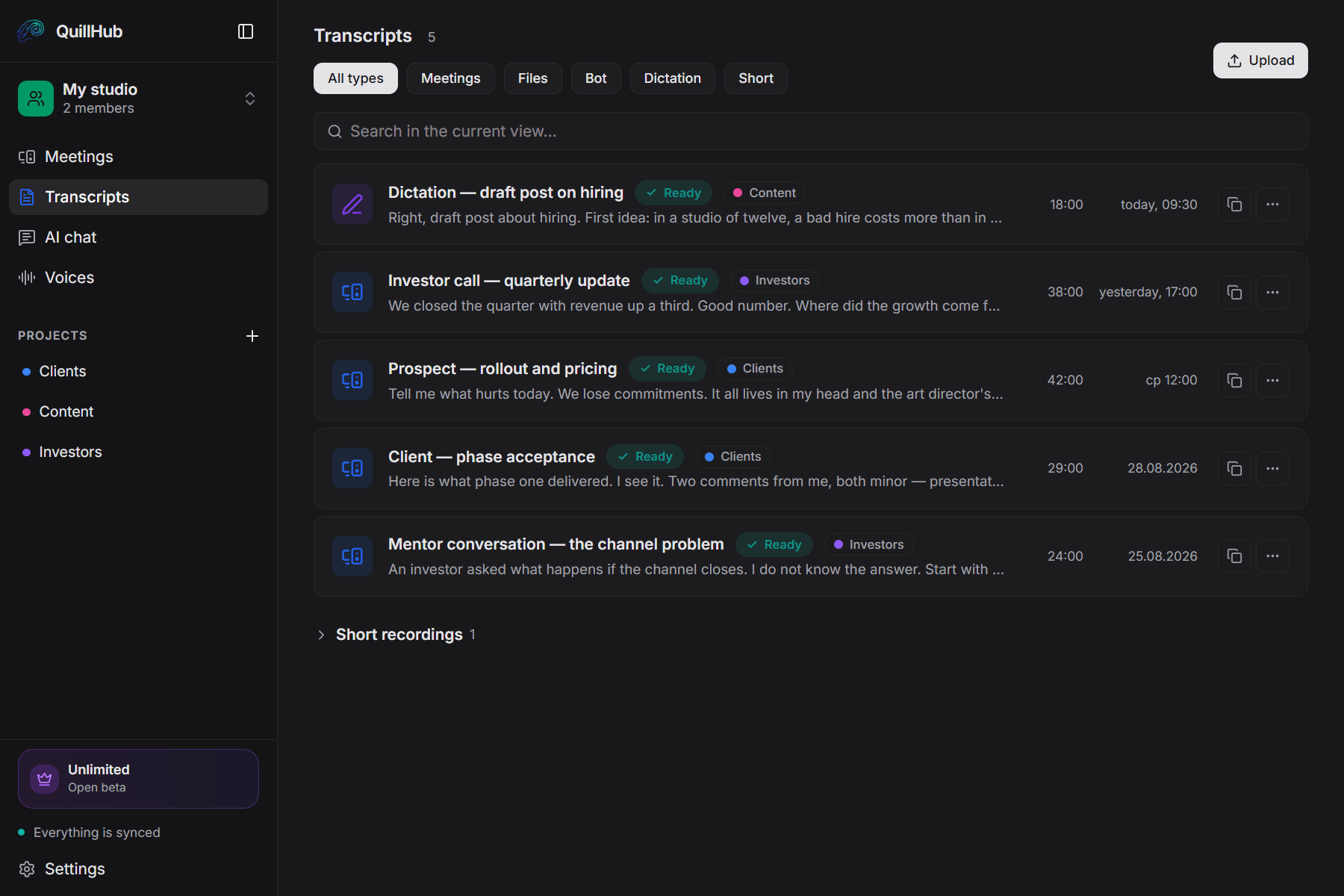
List of recorded meetings in the QuillHub Desktop app

Sample transcript

What a 29-minute Teams meeting looks like as text

Real QuillHub output with no manual edits: 29 minutes of recording, 4 voices separated automatically, every line with its own timestamp. Above the text: chapters and a summary. Switch the tabs to see each layer.

DSC v3 - Registry List, Registry Adapter and Community Resource Update Meeting00:00 / 29:23 · Steve Lee, Gijs Reijn, Marvin, Jason HelmickReady · 4 documents
  • Steve Lee1:08

    At the same time, 3.3 Preview 1 came out, I believe also last week. One of the new things in there, ignore what's on the screen. I'm going to talk about this later. This is something I'm currently working on.

  • Steve Lee5:53

    We're not going to backport to 3.2, although it's compatible with 3.2. Hopefully you're just testing against 3.3 anyways. That covers that. Any questions before I talk about the other thing?

  • Steve Lee10:10

    What the docs call personalization, this is why I called it that as well. And you can kind of see the key path here ends in personalized, right? There's a whole bunch of it. In fact, this file doesn't have all of them.

  • Steve Lee13:01

    Then for some reason, this person chose to represent 0 and 1 as strings versus as a number. It's like the worst of all worlds in my opinion. But this needs to be handled as well.

  • Gijs Reijn17:21

    I think I demoed it already a couple of calls away, but we decided to move it to the community, so Let me see if I can share my screen. Is it visible?

  • Marvin22:55

    So I need to start looking at, you know, since this is where we're going with it, I need to start looking at converting all that stuff over to DSC3.

  • Marvin25:58

    What I'm hearing is I should be trying to convert what we have to class-based resources. Is that what I'm hearing?

57 more turns, each with a speaker label and a timestamp; click a timestamp to jump the audio there

Speech split by person

Free speech-to-text hands back one paragraph for the whole recording. Here the voices are separated and every turn carries its own timestamp, so the text is readable straight away.

  • 4 voices separated automatically, no setup
  • Steve Lee — 73%, Gijs Reijn — 18%, Marvin — 8% of the time
  • Export to TXT, DOCX, SRT, and VTT
  • 0:00Meeting Opening and Announcements5 min
  • 4:54Registry List Resource: Design and Usage3 min
  • 8:06Design Considerations for List vs Singleton Resources2 min
  • 10:24Registry Adapter and Windows Personalization Resource4 min
  • 14:27Personalization, Registry Settings, and WMI Mapping2 min
  • 16:25AMA and Demo: Adaptive Resource Manifest & DSC Resource Authoring4 min
  • 20:22Community Resources: Class-based Migration and Tooling2 min
  • 22:05Opening and call for questions1 min
  • 22:53Marvin's DSC conversion needs and language considerations2 min
  • 24:40Documentation, resources, and recommendations for DSC v32 min
  • 26:48Meeting Closing and Goodbyes1 min

Each chapter has its own timestamp and length

The whole 29 minutes at a glance

Chapters follow the meaning, not the pauses, so you can see what each part of the recording covers and jump to the one you need.

  • 11 chapters across 29 minutes
  • Each chapter links to its place in the recording

Meeting reviewing recent DSC releases (3.2 GA, 3.3 Preview 1), introducing a new registry list resource for batch registry operations, and discussing a registry adapter that allows authoring human-friendly DSC resources backed by registry keys via an adaptive resource manifest and JSON schema.

  • DSC 3.2 is GA and 3.3 Preview 1 is available with new features.
  • RegistryList resource allows applying multiple registry entries in one resource for clarity and performance; switching to it is recommended.
  • List-type resources should be added when users typically manipulate multiple items at once; no harm in having both singleton and list variants.

Decisions the AI pulled out

  • Recommend using registry list resource (3.3 preview) instead of multiple singleton registry resources for grouped registry operations.01
  • Standardize on suffix 'List' for resources that accept arrays to make discovery and identification easier (DSC resource list).02
  • Adaptive resource manifests may include inline 'content' and adapters should support this model; partial adapters must explicitly support content to use it.03
  • Community goal: progressively update DSC community resources toward class-based implementations to leverage v3 features and schema discovery.04

No need to replay 29 minutes

The summary is built from the broadcast itself: key ideas, numbers and the decisions that were actually announced. It can go into a team chat as it is.

  • 4 decisions pulled from the conversation
  • 7 key points in the full summary
One-page digest

Announcement: DSC 3.2 GA and DSC 3.3 Preview 1 released.

from the recording
Article draft

“DSC v3 - Registry List, Registry Adapter and Community Resource Update Meeting”: DSC v3, registry list, registry adapter

from the recording
Follow-up email

What was discussed, what was decided, what happens next

template
Task list

Post link to the DSC 3.

from the recording
Ask the recording

“Create a checklist to convert PowerShell DSC modules to class-based for Marvin”: the chat answers from the text and gives the timestamp

chat
Your own prompt

A CRM note, a post, talking points — or any format you need

anything
  • DSC
  • Registry resource
  • Registry list
  • Adapter
  • Adaptive resource manifest
  • JSON schema
  • Class-based DSC resource
  • WMI
  • MOF
  • RDK

Every AI action is included in the Unlimited plan — no credits per click.

Finished documents on top of the text

The transcript is only the start. From one recording you can build a digest, an article draft or an email — or describe a format of your own.

  • Ready-made templates and your own prompts
  • Chat over the recording: ask anything about the text
  • 10 terms with definitions
Upload your recordingSee the full example(opens in a new tab)60 free minutes when you sign up · No card required

Example: DSC Community Call, May 2026, DSC Community, YouTube, license CC BY 4.0. Transcript, chapters, summary and key points by QuillHub.

How it works

How to record a Teams meeting and get the transcript

QuillHub Desktop records the meeting audio, QuillHub turns it into text and a summary. No bot joins the call, and your Teams admin doesn't have to turn anything on.

  1. 1

    Install QuillHub Desktop

    Download the app for macOS or Windows and sign in. On a Mac, allow system audio recording once. The app asks for screen recording access only to hear the other participants; it never records the screen.

  2. 2

    Join your Teams meeting

    When Teams turns on the microphone, the app shows “Auto-starting recording for Microsoft Teams in 5s” with a Cancel button, then records the audio and stops on its own after the call. Teams in a browser tab is caught too, as a meeting in the browser. If you see a question instead of a countdown, press Always, and Teams calls will start recording by themselves from then on.

  3. 3

    Open the transcript

    Calls longer than 5 minutes upload by themselves. A few minutes later, open it: lines are split by speaker, each with a timestamp, next to a summary with decisions and tasks. Export to DOCX, TXT, or Markdown, or send the meeting to a colleague as a link.

Already recorded

Have a Teams recording? Upload the file

Download the MP4 from OneDrive or SharePoint (the link sits in the meeting chat) and upload it as a file: OneDrive links can't be pasted. Recordings up to 10 hours, files up to 5 GB.

60 free minutes when you sign up · No card required

  • Google Drive
  • Direct file link
  • Files MP4, WAV, MP3, M4A, WEBM

After the call

What you get from a recorded Teams meeting

A Teams recording sits in someone's OneDrive, and a month later nobody remembers whose. A transcript in your own account shows what was agreed in a minute of reading.

Transcript by speaker

Speaker recognition is always on for meetings. Name each participant once, and the name appears next to every line of theirs in the recording.

Timestamps

Every line has its time. Find the moment a deadline was named and play it from that second instead of scrubbing through an hour of audio.

Summary, decisions, tasks

For meetings longer than 3 minutes, AI writes a summary: what was discussed, what was decided, which tasks came up, and who owns them when a name was said out loud.

Chapters for long meetings

A two-hour project review is split into chapters by topic, each with a title and start time. Each agenda item is one click away in the table of contents.

Follow-up email and task list

The Follow-up and Tasks buttons in the recording's AI chat draft an email to the attendees and a list of action items. Meeting minutes take one prompt: “write the minutes with decisions and deadlines.”

Questions to the recording

The AI chat answers from the meeting text, for example “which date did the client confirm?” Each answer comes with a timestamp, so it is easy to check.

AI for meetings

Ask the Teams recording what the client confirmed

The transcript is ready. Ask the recording a question, and the answer comes with the minute it was said.

Teams: CRM rollout status with the client · 4 speakers52:10
Which fields did the client ask to add to the deal card?

Lead source and company tax ID, both required. They also asked to show the Budget field only to department heads. The client promised to sign off on the card layout by Wednesday.

Meeting · 31:40 — the fragment is lit on the track
Have we talked about the email integration before?

Yes, two weeks ago. The team agreed to connect email after the deal cards go live, and in this meeting the client confirmed the date: the first week of next month.

2 meetings in the archive
status, week 1 · email after cards
status, week 3 · date confirmed
01

Questions across all meetings

The chat answers from every call in a project at once: the answer is built from several recordings, each part with its own timestamp.

02

Follow-up and tasks

Summarize, Follow-up, and Tasks buttons in the recording's chat, or your own prompt, such as meeting minutes.

03

Access for your AI agents

The MCP server lets Claude and other AI agents work with your meeting transcripts directly.

Every AI action is included in the Unlimited plan — no credits per click.

Ways to record

How to record a Teams meeting: seven ways compared

Teams records and transcribes meetings itself, but whether you can press Record depends on your license, your admin's settings, and whether you're in the organizer's company. QuillHub doesn't record video. QuillHub Desktop records the meeting audio, and the web app turns any Teams recording into text. Microsoft's terms are taken from Microsoft Support as of November 2026.

MethodWhat gets recordedDo participants knowWhere the recording ends upLimits
Teams at work: RecordVideo, audio, and screen sharing. You can choose Audio onlyYes, everyone gets a notification when recording startsThe organizer's OneDrive, or the team's SharePoint for channel meetings. The link appears in the meeting chatWork or school Microsoft 365 or Office 365 license, and the IT admin must allow recording. Guests and people from another company can't record. By default only organizers download the file
Teams: TranscribeText of what was said, with speaker names and timestampsYes, everyone sees a notificationThe meeting chat and its Recap tab, download as .docx or .vttStarts with the recording or on its own. By default only organizers and co-organizers can download it
Intelligent recapAI notes, tasks, and mentions from the meetingYes: the recap is built from the transcription, and everyone is notified about itThe Recap tab of the meetingNeeds a Teams Premium or Microsoft 365 Copilot license
Teams personalVideo and audio of the callYes, participants are notifiedThe meeting chat. The recording expires after 30 days unless you download itOnly for Microsoft 365 Personal, Family, or Premium subscribers. Without a subscription you can't start a recording
Screen recorderVideo of the screen; the audio depends on the app and its settingsNo, Teams doesn't know about itThe folder the system or the app setsNot every recorder captures the other participants' audio. Test it before an important call
QuillHub DesktopMeeting audio: the other participants and your microphone. No video, no screenNo bot and no notification: tell the participants yourselfYour QuillHub account, with a transcript by speaker and a summaryNeeds a computer with macOS 14.4+ or Windows 10+. Doesn't work on phones
Upload a file to QuillHubTranscript by speaker, timestamps, summary, and chapters from the Teams MP4Depends on how the file was recordedYour QuillHub account; export to DOCX, TXT, Markdown, SRT, VTTFiles up to 10 hours and 5 GB. A OneDrive link won't work: download the MP4 and upload the file

Which Teams meetings are worth recording

Anything that ends with “so who's doing what?” in the chat is better kept as text.

Meetings in a client's Teams

A client invites you as a guest to their organization, and the Record button is grayed out for guests. Desktop records the audio on your computer, whichever company runs the meeting. Tell the client at the start of the call.

Weekly project status

A recurring channel meeting covers the same ground every week. A summary of each one shows what has moved since last time.

Calls in Teams personal

Without a Microsoft 365 subscription, Teams personal doesn't record calls, and with one it keeps the recording for 30 days. The QuillHub transcript stays in your account until you delete it.

Classes and office hours

A university runs classes in Teams, and the recording lives in the course channel. It becomes notes with chapters, and reviewing from the text is faster than replaying the video.

Job interviews

The recruiter runs the Teams interview without typing the candidate's answers. The hiring manager reads a summary instead of an hour of video.

Retros and incident reviews

The team walks through an outage and agrees on what to change. A month later, the decisions are one question away in the QuillHub chat, with no scrolling through the channel.

Who it's for

Who needs Teams meetings as text

Teams runs in companies where meetings are many and scheduled back to back. A project manager, a sales rep, and a recruiter each need the meeting text for something different.

Project managers

Status meetings with the client on record

The project runs in the client's Teams, where you are a guest and can't press Record. Desktop records the audio on your side, and the summary keeps decisions and owners, when they were named.

  • A task list after every meeting with the Tasks button
  • Ask the archive: “when did the client confirm the deadline?”
  • A transcript link for those who missed the call
QuillHub for project managers

Sales teams

Demos without taking notes

Enterprise buyers invite you to demos in their own Teams. The rep runs the conversation, and the needs, objections, and next step are collected from the text afterwards.

  • A CRM note from one prompt to the recording
  • No bot in the meeting, the buyer sees only people
  • Search across every call with one company
QuillHub for sales teams

Customer success

Promises to clients in one place

Regular client meetings run for months, and agreements scatter across chats. The text of each meeting shows what was promised and when.

  • A follow-up email to the client with the Follow-up button
  • Ask the archive: “what did we promise this client?”
  • The client's line with a timestamp for disputes
QuillHub for customer success

HR and recruiting

Candidates' answers don't blur together

Five Teams interviews a day, and by evening they merge into one. A transcript with a summary keeps each candidate's answers separate.

  • Interview summary: experience, expectations, start date
  • Compare candidates with one question in the chat
  • A transcript link for the hiring manager
QuillHub for HR

Founders

Board and partner calls you can quote

Investors and partners often host the call in their own Teams. The meeting text keeps the exact wording of what was offered and agreed.

  • Summary with decisions after each call
  • Ask across months of calls with one partner
  • Export to DOCX for the team
QuillHub for founders

Teachers and students

A Teams class turns into notes

A class in Teams is easy to miss or forget. The class text with chapters and a short summary replaces replaying 90 minutes of video.

  • Class summary and chapters by topic
  • DOCX export for handouts
  • The first 60 minutes are free

Tips

How to record a Teams meeting so the transcript comes out right

Transcript accuracy depends on the audio. Here is what helps before the meeting and after it.

  • Tell people you're recording

    Teams notifies everyone about its own recording; QuillHub Desktop doesn't, so say it at the start and the consent is on the recording. Recording laws differ by state and country, and some require every participant's consent. If someone objects, don't record.

  • Ask the organizer for the MP4

    The built-in recording belongs to the organizer, and by default only organizers and co-organizers can download it. If you need text from a meeting that was already recorded, ask them for the file and upload it here.

  • Use a headset

    A laptop's built-in microphone picks up the keyboard and the room's echo. A headset or an external mic cuts mistakes in names and numbers.

  • Don't talk over each other

    When two people speak at once, AI splits lines by speaker less reliably. A simple rule helps on important calls: one person talks, the rest stay muted.

  • Test Desktop before a key meeting

    On a Mac, the app needs system audio access, granted once. On Windows, make a test Teams call: if the app asks instead of counting down, press Always; if nothing shows up, start the recording from Start recording in the tray menu. Do it ahead of time, not with a client waiting.

  • Short calls stay on your computer

    QuillHub Desktop keeps calls under 5 minutes on your computer and doesn't process them on its own: find them under Short recordings and send them when you need them, or change the limit in Settings. Recordings under 3 minutes get the transcript without a summary or chapters.

Without the website

Teams recording to text in Telegram

If you use Telegram, you can also send a meeting audio file to @QuillAI_Bot. It is the same service, and once you link Telegram to your account, the transcripts from the bot show up in the web app next to your Desktop meetings.

Open @QuillAI_Bot
  • Send an audio file to the bot; a Teams MP4 is easier to upload on the website
  • Minutes and plan are shared with the website after you link Telegram
  • After linking, transcripts from the bot land in your account

Pricing

The more you record, the cheaper the hour

Start free, pay only when you need more.

Our lowest price
Unlimited

from$6.66per month

Six months of unlimited — $39.99 up front. Minutes are not counted at all.

Get Unlimited

Six months — $39.99, billed once.

What $6.66 a month works out to

10 hours$0.67/hr
20 hours$0.33/hr
50 hours$0.13/hr

The same $6.66 in one-off packs buys about 500 minutes — roughly eight hours. Then they run out; Unlimited doesn’t.

Month by month the same half-year would cost $59.94 — a $19.95 difference.

One-off minute packs
from $2.99
Not a subscription. Minutes never expire and stack with your balance.
150 minutes — $2.99350 minutes — $4.99750 minutes — $9.992,950 minutes — $29.99

The minute gets cheaper with volume: from $0.020 in the smallest pack to $0.010 in the largest.

Start
$0
60 minutes when you sign up
  • 60 minutes to try, they don't expire
  • All languages and speaker recognition
  • Export to a document
  • No card required
Get started
Team

A shared workspace, projects and roles. Invoice billing and paperwork for companies.

$14.99per seat, per month
Start a team

FAQ

Teams meeting recorder: frequently asked questions

If your question isn't here, contact support.

It is a tool that saves a Microsoft Teams call to a file so you can replay it, read it, or search it later. Teams records video itself when your license and admin allow it; QuillHub Desktop records the meeting audio on your computer, and QuillHub turns any recording into a transcript by speaker with a summary.

First, speech recognition turns the audio into words, adds punctuation, and splits the text into lines by speaker, each with a timestamp. Then a language model reads the whole transcript and writes the summary, decisions, tasks, and chapters. An hour-long meeting usually takes a few minutes, depending on the file length and the queue. Recordings under 3 minutes get the transcript only.

In the Teams desktop app, select More actions in the meeting controls, then Record, choose what to record (Audio only is an option), and select Confirm. In the mobile app, it's More options → Start recording. Everyone in the meeting gets a notification. The recording goes to the organizer's OneDrive, and a link appears in the meeting chat. For audio and a transcript in your own account, use QuillHub Desktop.

Teams usually shows the reason when you hover over the unavailable Record option. The usual ones: you're a guest or from another company (“Only people in this org can start recording”), your IT admin hasn't allowed recording, your license doesn't include it, or the organizer let only organizers and co-organizers record. Ask the organizer to record and share the file, or ask the admin. QuillHub Desktop records the audio on your own computer whatever the Teams settings are, so tell the participants yourself.

With Teams' own recording, yes, if you're in the organizer's company, have a license with recording, and the organizer hasn't limited it to organizers. Guests and people from other companies can't. QuillHub Desktop records the audio on your computer whatever your role, and with no bot in the call, nobody sees a recorder in the participant list. So announce the recording at the start, and if someone objects, don't record.

Yes. When the built-in recording or transcription starts, everyone in the meeting gets a notification in the Teams desktop, web, or mobile app. QuillHub Desktop records outside Teams, so Teams doesn't know about it and shows nothing. That's why we ask you to tell people yourself.

It depends on where you and the other participants are. Some US states and some countries require every person's consent, others only one party's. Your company may also have its own recording policy. The safe practice is the same everywhere: announce the recording at the start and stop if someone objects. This is general information, not legal advice.

Most recordings go to the organizer's OneDrive; channel meeting recordings go to the team's SharePoint site. Either way, a link appears in the meeting chat. In Teams personal, the recording stays in the chat for 30 days and then expires. QuillHub Desktop recordings longer than 5 minutes go straight to your QuillHub account, and the original WAV stays in the Recordings folder on your computer.

Not with Teams itself. In Teams for personal use, recording is available only to Microsoft 365 Personal, Family, or Premium subscribers, and participants without a subscription can't start it. QuillHub Desktop records the audio of any Teams call on your computer, with or without a subscription.

No. QuillHub Desktop records audio only: the other participants and your microphone. The screen, cameras, and shared content are not recorded. If you need the video, record the meeting in Teams, download the MP4, and upload it here to get the text.

If your company has Teams transcription turned on and you're the organizer, it's a good option. QuillHub helps where it doesn't reach: you're a guest, your license has no recording, you use Teams personal, or the organizer keeps the transcript. You also get a summary, chapters, and an AI chat across all your meetings without a Teams Premium or Copilot license.

Yes. When you sign up, you get 60 free minutes with no card, enough for an hour-long meeting. Meetings recorded with QuillHub Desktop also get 14 days of full access. After that, buy a minute pack from $2.99 or go Unlimited for $9.99 a month.

Only you and the people you share a link with. Share links are off until you turn them on. Recordings and transcripts are encrypted in transit and at rest. A QuillHub Desktop recording is saved on your computer first, and the original file stays there.

Your data

What happens to your recordings

Doctor's appointments, legal consultations and therapy sessions go through QuillHub. That is why we say this plainly instead of burying it in the terms.

Who processes your data

Encryption — files and transcripts are encrypted in transit and at rest, and only you and the people you share a link with have access.

Never used for training — recordings are not used to train models and are not passed to third parties.

Delete anytime — a recording can be deleted at any moment, together with its transcript and everything derived from it.

Transparent subprocessors — the list of services involved in processing is published on its own page.

Start recording Teams meetings for free

14 days of full access for meetings recorded with QuillHub Desktop, no card required. Upload finished Teams recordings on the website with your 60 free minutes.