QuillHubQuillHub
RU

Google Meet meeting recorder: call recording and transcript

QuillHub Desktop notices when your browser turns on the microphone for a Google Meet call and records the call audio on your computer, with no bot in the call and no paid Google Workspace plan. After the call, your account has the transcript by speaker with timestamps, plus a summary with decisions and tasks.

  • No bot in the call
  • macOS 14.4+ and Windows 10+
  • 14 days of full access, no card
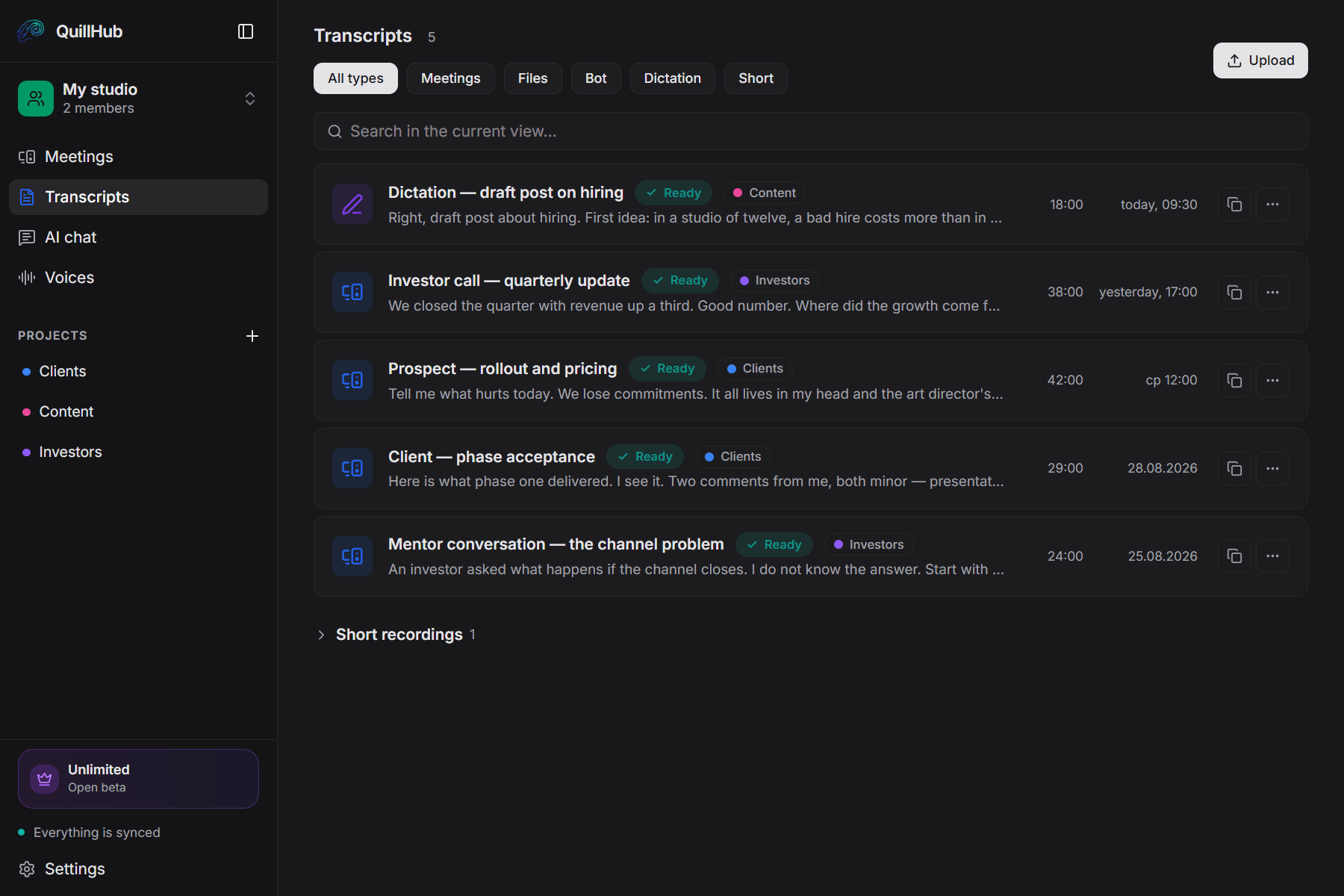
List of recorded meetings in the QuillHub Desktop app

Sample transcript

What a 37-minute Google Meet call looks like as text

Real QuillHub output with no manual edits: 37 minutes of recording, 3 voices separated automatically, every line with its own timestamp. Above the text: chapters and a summary. Switch the tabs to see each layer.

Scorers, Multi‑output Support and Merge/Entry‑Point Review (meeting)00:00 / 36:50 · Maintainer, Hashim, SudhanshuReady · 4 documents
  • Hashim7:42

    so, uh, the implementation of multi-output support on the scorers that we implemented ourselves in BFFML isn't really convincing, and I don't think, uh, that's the way to go.

  • Hashim15:05

    Yeah, that makes sense.

  • Hashim16:47

    Basically, there are algorithms that calculate the error, right? Error of your model, and they give out the value of the error that's present in the prediction.

  • Hashim21:34

    No, that doesn't require changes to multiple scorers. I just changed the base scikit-scorer file.

  • Sudhanshu26:48

    And the way I'm doing here is in the seed, I'm actually providing all the values to the input layer data point.

  • Hashim36:06

    So basically what I'm going to do with the scorers is just make it so that we are, you know, while we are instantiating the scorers, we just send in the features like we instantiate models, the predict features.

119 more turns, each with a speaker label and a timestamp; click a timestamp to jump the audio there

Speech split by person

Free speech-to-text hands back one paragraph for the whole recording. Here the voices are separated and every turn carries its own timestamp, so the text is readable straight away.

  • 3 voices separated automatically, no setup
  • Maintainer — 79%, Hashim — 11%, Sudhanshu — 10% of the time
  • Export to TXT, DOCX, SRT, and VTT
  • 0:01Opening and meeting agenda1 min
  • 1:02Code review and merge conflicts5 min
  • 6:02Timeline and action items (GSOC wrap-up)1 min
  • 7:30Introduction and initial questions1 min
  • 7:36Problems with multi-output scorers2 min
  • 9:10Proposal to decouple scorer from model (feature parameter)6 min
  • 15:04Renaming accuracy to score2 min
  • 17:18Implementation plan, reviews, and priorities2 min
  • 19:32Scoring multi-output and scikit-scorer changes4 min
  • 23:50Tests, cleanup, and merge readiness2 min
  • 25:56Request for feedback / Introduction1 min
  • 26:21Input layer design (matrix conversion)1 min
  • 27:25Operation instantiation error & entry point registration1 min
  • 28:34Entry point registry checks and dfml commands1 min

6 more chapters, each with its own timestamp and length

The whole 37 minutes at a glance

Chapters follow the meaning, not the pauses, so you can see what each part of the recording covers and jump to the one you need.

  • 20 chapters across 37 minutes
  • Each chapter links to its place in the recording

Team meeting reviewing a branch with merge conflicts and multi‑output scoring implementation.

  • Current custom multi‑output scorer implementation is unreliable and differs from scikit‑learn behavior.
  • Prefer using scikit‑learn scorers for multi‑output support and simplify base code.
  • Scores and models are too tightly coupled; scorer should accept an explicit feature config to reduce introspection.

Decisions the AI pulled out

  • Use scikit‑learn scorer implementations for multi‑output support instead of current custom aggregation.01
  • Add a config parameter to scorers to specify which predicted feature to score (decoupling scorer from model internals).02
  • Rename the high‑level 'accuracy' function to 'score' (priority P0 for next release).03
  • Keep multi‑output changes only in the scikit‑based scorer files and back out other custom multi‑output modifications.04

No need to replay 37 minutes

The summary is built from the broadcast itself: key ideas, numbers and the decisions that were actually announced. It can go into a team chat as it is.

  • 4 decisions pulled from the conversation
  • 6 key points in the full summary
One-page digest

Agreed to use scikit scores for multi‑output rather than current custom aggregation.

from the recording
Article draft

“Scorers, Multi‑output Support and Merge/Entry‑Point Review (meeting)”: multi‑output, scorers, model scoring

from the recording
Follow-up email

What was discussed, what was decided, what happens next

template
Task list

Remove non‑scikit multi‑output changes and keep only scikit‑based scorer modifications (cleanup).

from the recording
Ask the recording

“Create a merge checklist for Hashim's scorer cleanup and WIP removal”: the chat answers from the text and gives the timestamp

chat
Your own prompt

A CRM note, a post, talking points — or any format you need

anything
  • Multi‑output
  • Scikit
  • Scorer / scoring
  • Introspection
  • Entry points
  • WIP

Every AI action is included in the Unlimited plan — no credits per click.

Finished documents on top of the text

The transcript is only the start. From one recording you can build a digest, an article draft or an email — or describe a format of your own.

  • Ready-made templates and your own prompts
  • Chat over the recording: ask anything about the text
  • 6 terms with definitions
Upload your recordingSee the full example(opens in a new tab)60 free minutes when you sign up · No card required

Example: DFFML Weekly Sync, August 3, 2021, DFFML, YouTube, license CC BY 4.0. Transcript, chapters, summary and key points by QuillHub.

How it works

How to record a Google Meet meeting and get the transcript

QuillHub Desktop records the call, QuillHub turns it into text and a summary. Three steps, no bot in the meeting, and any Google account works.

  1. 1

    Install QuillHub Desktop

    Download the app for macOS or Windows and sign in. On a Mac, allow system audio recording once. The app asks for screen recording access only to hear the other participants; it never records the screen.

  2. 2

    Join the call in your browser

    Open Google Meet in Chrome, Safari, Edge, Firefox, Arc, or Brave as usual. When the tab turns on the microphone, the app counts down 5 seconds and starts recording (you can cancel), then stops on its own after you leave the call. To decide each time, set Meetings in the browser to Ask in Settings → Meeting auto-capture.

  3. 3

    Open the transcript

    Calls longer than 5 minutes upload by themselves. A few minutes later, open it: lines are split by speaker, each with a timestamp, next to a summary with decisions and tasks. Export to DOCX, TXT, or Markdown, or send the meeting to a colleague as a link.

Already recorded

Have a Google Meet recording? Upload the file

Download the recording from the “Google Meet” folder in Google Drive and add it here, or paste a Drive link shared with anyone who has the link. Recordings up to 10 hours, files up to 5 GB.

60 free minutes when you sign up · No card required

  • Google Drive
  • Direct file link
  • Files MP4, WEBM, WAV, MP3, M4A

After the call

What you get from a recorded Google Meet call

A recording only helps if someone opens it. A transcript gets opened, because it answers the questions people actually have after a call: who said it, what was agreed, what happens next.

Transcript by speaker

Speaker recognition is always on for meetings. Name each participant once, and the name applies to the whole recording.

Timestamps

Every line has its time. Go to the moment someone gave a number or a date and play it from that second.

Summary, decisions, tasks

For meetings longer than 3 minutes, AI writes a summary: what was discussed, what was decided, which tasks came up, and who owns them when a name was said out loud.

Chapters for long calls

A long call is split into chapters by topic, each with a title and start time, so you can skip to the agenda item you need.

Follow-up email and task list

The Follow-up and Tasks buttons in the recording's AI chat draft an email to the attendees and a list of action items. Meeting minutes take one prompt: “write the minutes with decisions and deadlines.”

Questions to the recording

The AI chat answers from the meeting text, for example “which date did we agree on?” Each answer comes with a timestamp, so it is easy to check.

AI for meetings

Ask the Google Meet recording what the client approved

The transcript is ready. Ask the recording a question, and the answer comes with the minute it was said.

Google Meet: website project check-in · 4 speakers38:20
What did the client approve today?

The new homepage layout and the shorter signup form. They asked to keep the old pricing table until the end of the quarter, and the designer agreed to bring it back in the next draft.

Meeting · 14:42 — the fragment is lit on the track
Has the pricing table come up before?

Yes, on the first call. The client said their sales team quotes from it, so it should stay until new prices are confirmed. It didn't make it into the brief.

2 meetings in the archive
kickoff call · sales team quotes from it
check-in · keep until end of quarter
01

Questions across all meetings

The chat answers from every call in a project at once: the answer is built from several recordings, each part with its own timestamp.

02

Follow-up and tasks

Summarize, Follow-up, and Tasks buttons in the recording's chat, or your own prompt, such as a change list for the next draft.

03

Access for your AI agents

The MCP server lets Claude and other AI agents work with your meeting transcripts directly.

Every AI action is included in the Unlimited plan — no credits per click.

Ways to record

How to record a Google Meet: seven ways compared

Google Meet records video itself, but only on certain paid Google plans and with the host's permission. QuillHub doesn't record video. QuillHub Desktop records the meeting audio on any account, and the web app turns a Meet recording into text. Google's terms are taken from Google Meet Help as of November 2026.

MethodHow to recordWhat you getWhere the recording ends upLimits
Google Meet: built-in recordingMeeting tools → Recording → Start recording, on a computer or an Android deviceA video of the active speaker and anything presented, optionally with captionsThe organizer's Google Drive, “Google Meet” folder. The organizer and whoever started it get an email with the linkOnly on paid plans: Business Standard or Plus, Essentials, Enterprise, some Education editions, Workspace Individual, or Google One with 2 TB+. A free Gmail account can't record. The admin must allow it, participants need the host's permission, 8 hours max
Google Meet: transcriptsMeeting tools → Transcribe → Start transcriptionA transcript of the spoken wordsThe organizer's Google DriveBusiness Standard and Plus, Enterprise, Workspace Individual, some Education editions. Eight languages: English, French, German, Italian, Japanese, Korean, Portuguese, Spanish
Google Meet: “Take notes for me”Gemini takes notes during the call, turned on in the meeting or in CalendarAI notes in a Google Doc, without a recordingGoogle Docs; the organizer gets an email with the linkAn eligible Workspace edition or Google AI plan. The same eight languages, one language per meeting
Screen recorder or Chrome extensionThe built-in screen recorder of Windows or macOS, or a recording extensionA video file of the screen or the tabThe folder the system or the extension setsNot every recorder captures both the call audio and your microphone. Test it before an important call
Meeting bot (AI note taker)A note-taking service sends a bot into the call as a participantRecording and notes in that serviceIn the service's accountEveryone sees the bot in the participant list, and the host may have to admit it
QuillHub DesktopThe app notices that the browser took the microphone and starts recording by itselfMeeting audio: the other participants and your microphone. No video, no screenYour QuillHub account, with a transcript by speaker and a summaryWorks with any Google account, free or paid. Needs a computer with macOS 14.4+ or Windows 10+. Doesn't work on phones
Upload a file to QuillHubDownload the Meet recording from Drive and upload it to the form on this pageTranscript by speaker, timestamps, summary, chaptersYour QuillHub account; export to DOCX, TXT, Markdown, SRT, VTTFiles up to 10 hours and 5 GB. A Drive link works only if the file is shared with anyone who has the link

Which Google Meet calls are worth recording

If you'd want to scroll back through a call later, it's worth having as text.

Team syncs in Google Workspace

A weekly sync on Meet becomes a summary with tasks and owners. Teammates who were out read it in a couple of minutes instead of asking around.

Client and freelance calls

Briefs, feedback, and approvals stay in the client's own words. When the scope changes later, you can see what was asked for on the first call.

Classes and tutoring

A lesson on Meet becomes notes with chapters. Students review from the text, tutors keep a record of what each session covered.

Job interviews

Interviews held on Meet get a transcript and a short summary, so the hiring manager reads the candidate's answers instead of a recruiter's paraphrase.

Customer and user interviews

Research calls give you quotes by speaker with timestamps. One question in the chat runs across every interview in a project.

Open project calls

Volunteer groups and open-source projects that meet on Meet get a written record of each call: updates, open questions, and next steps.

Who it's for

Who needs Google Meet calls as text

Every role has its own calls and its own cost of a forgotten agreement. Here is what a meeting transcript changes.

Project managers

Decisions from the call are written down

Minutes are no longer written from memory an hour after the call. Decisions, deadlines, and owners, when they were named, are already listed and ready to send.

  • Summary with decisions and tasks after every meeting
  • Ask the archive: “when did we move the deadline?”
  • A link to the recording for those who missed it
QuillHub for project managers

Sales teams

A CRM-ready note after every demo

Reps run demos on Meet without stopping to type. After the call, the prospect's needs, objections, and next step are already collected.

  • A CRM note from one prompt to the recording
  • The prospect's exact words about budget and timing
  • Search across every call with one company
QuillHub for sales teams

Customer success

Promises to clients are on record

Check-ins with the same client run for months, and details drift. The text of each call shows what was promised and when.

  • A follow-up email to the client with the Follow-up button
  • Ask the archive: “what did we promise this client?”
  • The client's line with a timestamp when there's a dispute
QuillHub for customer success

HR and recruiting

Meet interviews without a notepad

After four interviews in a day, the candidates blur together. A transcript with a summary keeps each candidate's answers separate.

  • Interview summary: experience, expectations, start date
  • Compare candidates with one question in the chat
  • A transcript link for the hiring manager
QuillHub for HR

Product and UX research

User interviews as quotes

Research calls on Meet usually wait weeks for someone to transcribe them. Here the text with speakers is ready a few minutes after the call.

  • Verbatim user quotes by speaker
  • One question across ten interviews
  • Chapters with timestamps for long interviews
QuillHub for product teams

Teachers and tutors

A Meet lesson turns into notes

Students miss classes, and tutors lose track of what each session covered. The lesson text with chapters and a short summary fixes both.

  • Lesson summary and chapters by topic
  • DOCX export for handouts
  • The first 60 minutes are free

Tips

How to record a Google Meet call so the transcript comes out right

Transcript accuracy depends on the audio, and with a browser meeting, on a couple of settings. Here is what helps.

  • Tell people you're recording

    Meet's own recording notifies everyone; QuillHub Desktop doesn't show up in the call, so say it yourself at the start. Recording laws differ by state and country, and some require every participant's consent. If the host objects, don't record.

  • The rule applies to the whole browser

    QuillHub Desktop sees the browser, not the Meet tab. Pressing “Never for this app” on the countdown, or Never in a prompt, turns off recording for every call in that browser. To skip just one call, press Cancel during the countdown.

  • Close other tabs that use the mic

    Any tab that takes the microphone looks like a meeting to the app. Close voice tools and other calls before you join, and the recording will hold only the Meet call.

  • Use a headset

    A laptop's built-in microphone picks up the keyboard and the room's echo. A headset or an external mic cuts mistakes in names and numbers.

  • Test Desktop before a key meeting

    On a Mac, the app needs system audio access, granted once. Make a short test call ahead of time so you aren't hunting for settings with a client waiting.

  • Short calls stay on your computer

    QuillHub Desktop keeps calls under 5 minutes on your computer and doesn't process them on its own: find them under Short recordings and send them when you need them, or change the limit in Settings. Recordings under 3 minutes get the transcript without a summary or chapters.

Without the website

Google Meet recording to text in Telegram

If you use Telegram, you can also send a meeting file to @QuillAI_Bot. It is the same service, and once you link Telegram to your account, the transcripts from the bot show up in the web app too.

Open @QuillAI_Bot
  • Send the recording downloaded from Google Drive
  • Minutes and plan are shared with the website after you link Telegram
  • After linking, transcripts from the bot land in your account

Pricing

The more you record, the cheaper the hour

Start free, pay only when you need more.

Our lowest price
Unlimited

from$6.66per month

Six months of unlimited — $39.99 up front. Minutes are not counted at all.

Get Unlimited

Six months — $39.99, billed once.

What $6.66 a month works out to

10 hours$0.67/hr
20 hours$0.33/hr
50 hours$0.13/hr

The same $6.66 in one-off packs buys about 500 minutes — roughly eight hours. Then they run out; Unlimited doesn’t.

Month by month the same half-year would cost $59.94 — a $19.95 difference.

One-off minute packs
from $2.99
Not a subscription. Minutes never expire and stack with your balance.
150 minutes — $2.99350 minutes — $4.99750 minutes — $9.992,950 minutes — $29.99

The minute gets cheaper with volume: from $0.020 in the smallest pack to $0.010 in the largest.

Start
$0
60 minutes when you sign up
  • 60 minutes to try, they don't expire
  • All languages and speaker recognition
  • Export to a document
  • No card required
Get started
Team

A shared workspace, projects and roles. Invoice billing and paperwork for companies.

$14.99per seat, per month
Start a team

FAQ

Google Meet meeting recorder: frequently asked questions

If your question isn't here, contact support.

It is a tool that saves a Google Meet call to a file so you can replay it, read it, or search it later. Meet records video itself on some paid plans; QuillHub Desktop records the meeting audio on your computer with any account, and QuillHub turns the recording into a transcript by speaker with a summary.

First, speech recognition turns the audio into words, adds punctuation, and splits the text into lines by speaker, each with a timestamp. Then a language model reads the whole transcript and writes the summary, decisions, tasks, and chapters. An hour-long meeting usually takes a few minutes, depending on the file length and the queue. Recordings under 3 minutes get the transcript only.

On a computer, join the call, click Meeting tools at the bottom right, then Recording → Start recording, and confirm with Start. Everyone in the call gets a notification. When you stop, or when everyone leaves, the video goes to the organizer's Google Drive, “Google Meet” folder, and the organizer gets an email with the link. This works only on eligible paid plans; QuillHub Desktop records the audio on any account.

Not with Meet's own button. According to Google Meet Help, recording needs Business Standard or Plus, Essentials, an Enterprise or eligible Education edition, Workspace Individual, or Google One with 2 TB or more. With QuillHub Desktop the Google plan doesn't matter: it records the call audio on your computer, and the first 60 minutes of transcription are free.

With Meet's built-in recording, a participant can record only if the host has permission to record and allows it, so ask the host. QuillHub Desktop records the audio on your own computer, and with no bot in the call, nobody sees a recorder in the participant list. So tell the other participants yourself at the start of the call. If the host objects, don't record.

The usual reasons, according to Google Meet Help: your Google plan doesn't include recording, your Workspace admin hasn't turned it on, the host's account can't record (then nobody in the call can), you're not the host and haven't been given permission, or you joined only to present. On iPhone and iPad, Meet doesn't record at all; use a computer or an Android device.

With Meet's own recording, yes: everyone gets a notification when it starts and stops. QuillHub Desktop records on your computer and doesn't appear in the call, so the others won't see it. Announce the recording at the start and stop if someone objects. Some US states and countries require every participant's consent. This is general information, not legal advice.

Meet saves recordings to the meeting organizer's Google Drive, in the “Google Meet” folder, with a sub-folder for each meeting; the link also lands in the organizer's email and the Calendar event. QuillHub Desktop recordings longer than 5 minutes go straight to your QuillHub account, and the original WAV stays in the recordings folder on your computer.

Meet's own recording works on a computer or an Android device, not on iPhone, and only on eligible plans. QuillHub Desktop runs only on macOS and Windows. If a Meet recording is already in Drive, download it and upload it here, or send it to the Telegram bot.

No. QuillHub Desktop records audio only: the other participants and your microphone. The screen, cameras, and presentations are not recorded. If you need the video, record the meeting in Google Meet, then upload the file from Drive here to get the text.

Chrome, Safari, Edge, Firefox, Arc, Brave, Opera, and Vivaldi. The app doesn't read your tabs: it notices that the browser turned on the microphone and records the system audio and your mic. That's why any browser call counts as a meeting, and a rule you set in the prompt applies to the whole browser.

On some paid plans, yes: Meet Transcripts and Gemini's “Take notes for me” save a text or AI notes to Google Drive and Docs. Both support eight languages, English among them. QuillHub transcribes 98+ languages, splits lines by speaker with timestamps, and works no matter which Google plan the organizer has.

Yes. When you sign up, you get 60 free minutes with no card, enough for an hour-long meeting. Meetings recorded with QuillHub Desktop also get 14 days of full access. After that, buy a minute pack from $2.99 or go Unlimited for $9.99 a month.

Your data

What happens to your recordings

Doctor's appointments, legal consultations and therapy sessions go through QuillHub. That is why we say this plainly instead of burying it in the terms.

Who processes your data

Encryption — files and transcripts are encrypted in transit and at rest, and only you and the people you share a link with have access.

Never used for training — recordings are not used to train models and are not passed to third parties.

Delete anytime — a recording can be deleted at any moment, together with its transcript and everything derived from it.

Transparent subprocessors — the list of services involved in processing is published on its own page.

Start recording Google Meet calls for free

14 days of full access for meetings recorded with QuillHub Desktop, no card required. Upload finished Meet recordings on the website with your 60 free minutes.