QuillHubQuillHub
RU

WhatsApp call recorder: record calls on PC and Mac

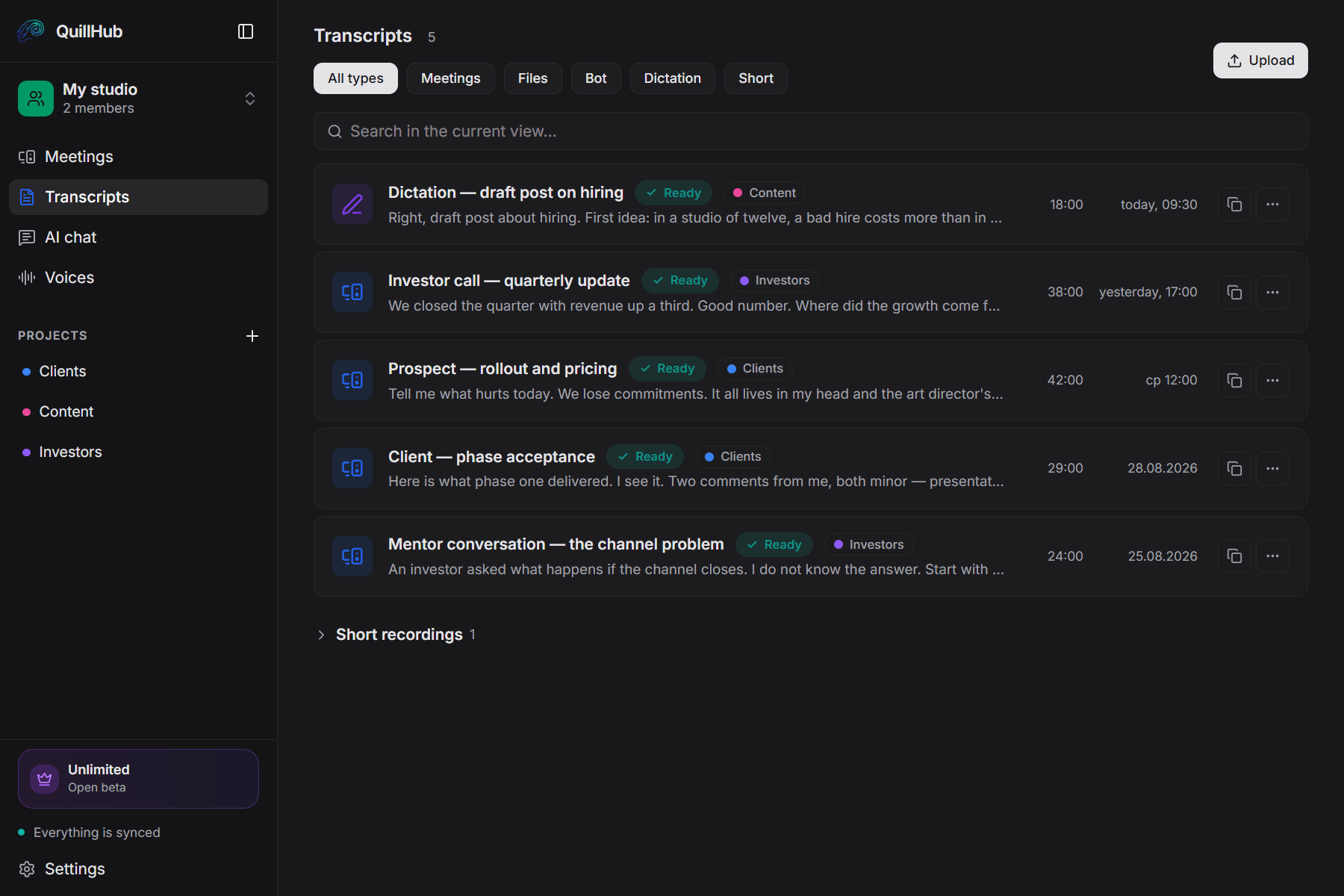
QuillHub Desktop notices a WhatsApp call on your Mac or Windows computer and records its audio: the other person and your microphone. After the call, your account has the transcript split by speaker, with timestamps and a summary. The other person can be on a phone; they don't install anything.

  • Records WhatsApp for Windows, Mac, and Web
  • macOS 14.4+ and Windows 10+
  • 14 days of full access, no card
List of recorded calls in the QuillHub Desktop app

Sample transcript

What a long recording looks like as text

Real QuillHub output with no manual edits. The sample is a 1-hour 43-minute live broadcast, not a WhatsApp call: six voices separated automatically, every line with its own timestamp, chapters and a summary above the text. Switch the tabs.

SpaceX Starship Flight 13 — live broadcast00:00 / 1:43:17 · Kate Tice, Dan Hewitt, Nathan CommissaryDone · 4 documents
  • Kate Tice0:00

    It's 5:19 PM Texas time, and we are just over 31 and a half minutes away from Starship Flight 13.

  • Nathan Commissary1:38

    We're planning to deploy 20 of the newest generation Starlink satellites.

  • Nathan Commissary2:23

    Starship is a developmental program. We test in flight because it's the best way to rapidly iterate.

  • Kate Tice2:39

    While we have real Starlink satellites on board, the most important payload today is data.

  • Kate Tice14:03

    It's designed to carry massive orbital payloads, both cargo and crew, to Earth, orbit the moon, Mars and beyond.

  • Nathan Commissary38:32

    And another awesome landing for super heavy. Congratulations to all the teams here at Starbase and at our SpaceX team.

  • Dan Hewitt1:34:19

    Starship is executing the swoosh maneuver. Dynamic pressure is coming down.

153 more turns — speaker and timestamp on each, clicking a timestamp seeks the audio

Speech split by person

Free speech-to-text hands back one paragraph for the whole recording. Here the voices are separated and every turn carries its own timestamp, so the text is readable straight away.

  • 6 voices separated automatically, no setup
  • Kate Tice 32%, Dan Hewitt 36%, Nathan Commissary 17% of the time
  • Export to DOCX, PDF and SRT
  • 0:00Welcome and Flight Overview1 min
  • 1:03Mission Objectives & Starlink Payload2 min
  • 2:52Recap of Previous Launch Attempt and Engine Troubleshooting3 min
  • 5:30Countdown Status and Weather2 min
  • 7:17Launch Pad Infrastructure and Ground Testing4 min
  • 12:02Starship v3 Overview: Structure, Engines, and Reusability2 min
  • 14:08Starlink V3 Satellites: Capabilities and Test Plan3 min
  • 17:35Starmind and Space-Based AI: Mass to Orbit, Power, and Chips3 min
  • 20:37Flight 13 Profile: Ascent, Separation, and Deployment1 min
  • 23:32Artemis III and Starship Crewed Mission Planning1 min
  • 28:43Mission Objectives and Liftoff Sequence4 min
  • 32:18Launch and Ascent — Max Q and Hot Staging3 min
  • 37:21Booster Re-entry, Landing Burn, and Splashdown2 min
  • 48:59First Starlink V3 deployments and capabilities3 min

20 more chapters, each with its own timestamp and length

The whole broadcast at a glance

Chapters follow meaning, not pauses: you can see where the engines were discussed and where the crewed missions were. Click a chapter and you are at that minute.

  • 34 chapters across 1:43:17 of audio
  • Every chapter links to a point in the audio

Across 100 minutes the broadcast covers the root cause of the previous abort, a successful liftoff with hot staging, deployment of 20 satellites and an in-space engine relight.

  • Root cause of the last attempt: moisture inside the oxygen turbopumps froze and impeded pump spin.
  • All 33 Raptor engines lit at liftoff; hot staging and orbital insertion succeeded.
  • All 20 Starlink V3 satellites established communications, including laser links.

Decisions the AI pulled out

  • Proceed with a second launch attempt after root-cause analysis and engine swaps.01
  • Swap six engines suspected of turbopump moisture issues and validate on the test stand.02
  • Deploy 20 Starlink V3 satellites despite a short on-orbit lifetime, to speed up engineering tests.03
  • Attempt an extended in-space Raptor relight of about 14 seconds.04
  • Use PEZ dispenser mechanism to deploy satellites and equip several satellites with cameras to image Starship heat shield.05
  • Plan soft splashdowns for both booster and ship in the ocean for recovery and data collection.06
  • Continue iterative testing approach and expand weather-launch envelope capabilities.07

So you never replay 100 minutes

The summary is built from the broadcast itself: key ideas, numbers and the decisions that were actually announced. It can go into a team chat as it is.

  • 7 decisions pulled out of the broadcast
  • Every point links back to a minute in the recording
One-page digest

Key ideas, every number and every decision in a single document

template
Article draft

Structure and quotes pulled straight from the recording

template
Follow-up email

What was discussed, what was decided, what happens next

template
Task list

Who does what next — the tasks from the recording as one list

template
Ask the recording

"What did they decide about the relight?" — the chat answers with a timestamp

chat
Your own prompt

A CRM note, a post, talking points — or any format you need

anything
  • OX turbo pump
  • Raptor engine
  • Super Heavy
  • Ship
  • Hot staging
  • Max Q
  • Plasma blackout
  • PEZ dispenser
  • Flame diverter
  • Grid fins
  • TVC
  • MECO

Every AI action is included in the Unlimited plan — no credits per click.

Finished documents on top of the text

The transcript is only the start. From one recording you can build a digest, an article draft or an email — or describe a format of your own.

  • Ready-made templates and your own prompts
  • Chat over the recording: ask anything about the text
  • 12 terms with definitions
Upload your recordingSee the full example(opens in a new tab)60 free minutes when you sign up · No card required

How it works

How to record a WhatsApp call and get the transcript

QuillHub Desktop records the call audio on your computer, and QuillHub turns it into text and a summary. Nothing joins the call, and the other person talks from wherever they are.

  1. 1

    Install QuillHub Desktop

    Download the app for macOS or Windows and sign in. On a Mac, allow system audio recording once. The app asks for screen recording access only to hear the other side of the call; it never records the screen.

  2. 2

    Call from WhatsApp on your computer

    Use WhatsApp for Windows or Mac, or WhatsApp Web in a browser tab. When the call takes the microphone, the app shows “Auto-starting recording for WhatsApp in 5s” with a Cancel button, or asks first: press Always, and WhatsApp calls will start recording by themselves from then on. If nothing appears, choose Start recording in the tray menu. The recording stops on its own when you hang up.

  3. 3

    Open the transcript

    By default, calls longer than 5 minutes upload by themselves. A few minutes later, open the call: lines are split by speaker, each with a timestamp, next to a summary with what was agreed. Export to DOCX, TXT, or Markdown, or share the call as a link.

Already recorded

Have a call recording or a voice message? Upload the file

A phone screen recording, a voice memo from a second phone, or WhatsApp voice messages saved from a chat: upload them as files, and the text comes from the sound. Recordings up to 10 hours, files up to 5 GB.

60 free minutes when you sign up · No card required

  • Google Drive
  • Direct file link
  • Files MP4, M4A, OPUS, OGG, WAV, MP3

After the call

What you get from a recorded WhatsApp call

An audio file of a call rarely gets replayed in full. The text shows who said what, and you find the part you need by reading, not by scrubbing.

Transcript by speaker

Speaker recognition is always on for calls. Name each person once, and the name appears next to every line of theirs, in one-to-one and group calls.

Timestamps

Every line has its time. An address, a price, or a date the other person named is easy to replay from the right second.

Summary and next steps

For calls longer than 3 minutes, AI writes a summary: what you talked about, what was decided, and what is left to do, with names when they were said out loud.

Chapters for long calls

A 40-minute call with a client or a relative is split into chapters by topic, each with a title and start time.

Follow-up message and task list

The Follow-up and Tasks buttons in the recording's AI chat draft a recap message to the other person and a list of to-dos. Anything else takes one prompt.

Questions to the recording

The AI chat answers from the call text, for example “what deposit did the contractor ask for?” Each answer links to the recording it came from, so you can check it in the transcript.

AI for calls

Ask the WhatsApp call what the contractor promised

The transcript is ready. Ask the recording a question, and the answer comes back from the call text.

WhatsApp call: kitchen remodel with the contractor · 2 speakers38:12
What did the contractor say about the schedule and the deposit?

Demolition starts on the 9th, cabinets arrive in the third week, and the job takes about five weeks in total. He asked for a 30% deposit before ordering the cabinets and the rest in two payments, after the countertops and at the end.

Call · 21:40 — the fragment is lit on the track
Did he mention the countertop price in an earlier call?

Yes, two weeks ago he gave a range for quartz. In this call he named a fixed price after measuring and said it holds until the end of the month.

2 calls in the archive
first call · price range
this call · fixed price
01

Questions across all calls

The chat answers from every recording at once, and the answer shows which calls it came from.

02

Recap and tasks

Summarize, Follow-up, and Tasks buttons in the recording's chat, or your own prompt, such as a list of agreed terms.

03

Access for your AI agents

The MCP server lets Claude and other AI agents work with your call transcripts directly.

Every AI action is included in the Unlimited plan — no credits per click.

Ways to record

How to record a WhatsApp call: six ways compared

WhatsApp has no record button for calls, on phones or computers. Here is what each workaround actually saves. QuillHub doesn't record video or phone calls; QuillHub Desktop records the call audio on a computer, and the website turns any call recording into text.

MethodWhat gets recordedDoes the other person knowWhere the recording ends upLimits
WhatsApp itselfNothing: there is no call recording feature in WhatsApp for Android, iPhone, Windows, Mac, or the webNot applicableNot applicableThe call history shows only who called and when, not what was said
Phone screen recordingVideo of the phone screen during the call; the other person's voice only on some phonesNo, WhatsApp doesn't show anythingThe phone's photo gallerySome phones record only your own voice or no call audio at all. Test it on a practice call
Speakerphone and a second deviceBoth voices through the room, recorded by another phone or the Microphone tab on this pageThey hear the speakerphone, but nothing says it's recordedOn the second device, or straight in your QuillHub accountNeeds a quiet room; the other person sounds quieter than you. Works when the call can only happen on a phone
Screen recorder on a computerVideo of the screen; the call audio depends on the recorder and its settingsNo, WhatsApp doesn't know about itThe folder the recorder setsNot every recorder captures the other person's voice, and it gives you a video, not text
QuillHub DesktopCall audio: the other person and your microphone, voice and video calls alike. No video, no screenNo indicator: tell the other person yourselfYour QuillHub account, with a transcript by speaker and a summaryNeeds macOS 14.4+ or Windows 10+ and WhatsApp on that computer. Doesn't work on phones
Upload a file to QuillHubTranscript by speaker, timestamps, summary, and chapters from any call recording; plain text for files under 3 minutesDepends on how the file was recordedYour QuillHub account; export to DOCX, TXT, Markdown, SRT, VTTFiles up to 10 hours and 5 GB. A phone screen recording works: the text comes from its sound

Which WhatsApp calls are worth recording

WhatsApp is where many people take work calls without a meeting invite. The details said in those calls are easy to lose.

Clients abroad

Customers in other countries often prefer a WhatsApp call to a phone number or a meeting link. The order details stay in the text in their own words, not in a sales rep's memory.

Contractors and suppliers

Prices, quantities, and delivery dates are agreed by voice, and not all of it is confirmed in writing. In the transcript, every number sits next to the minute it was said.

Phone screens with candidates

Candidates in other cities or time zones ask for a quick WhatsApp call. Their answers and a short summary stay with the recruiter.

Interviews for a story

A source abroad agrees to talk only on WhatsApp. The transcript with timestamps is ready a few minutes after the call, and quotes are easy to check.

Consultations and lessons

A tutor, coach, or consultant works by WhatsApp call. The advice stays in the text point by point, when the client agreed to the recording.

Family stories

A grandparent tells the family history on a call with relatives in another country. The recording and its text keep the story for everyone.

Who it's for

Who needs WhatsApp calls as text

WhatsApp calls happen outside the usual meeting tools, so nobody takes notes. These are the people who need them most.

Sales teams

Client calls that skip the CRM

Clients call on WhatsApp instead of the work line, and those talks never reach the CRM. After the call, the needs, objections, and next step are already collected from the text.

  • A CRM note from one prompt to the recording
  • Ask the archive: “what discount did we offer this client?”
  • A follow-up message with the Follow-up button
QuillHub for sales teams

Recruiters

Phone screens without typing answers

Candidates abroad ask for a WhatsApp call. A transcript with a summary keeps each candidate's answers separate for the hiring manager.

  • Call summary: experience, expectations, start date
  • Compare candidates with one question in the chat
  • A transcript link for the hiring manager
QuillHub for HR

Journalists

Interviews you can quote

Sources in other countries often talk only on WhatsApp. The transcript keeps the exact words with the time they were said.

  • Transcript by speaker with timestamps
  • Chapters to find one topic in a long interview
  • DOCX export for your notes
QuillHub for media

Customer success

What was promised on the call

Key accounts call your manager on WhatsApp with urgent questions. The text of each call shows what was promised and when.

  • Tasks after every call with the Tasks button
  • Ask the archive: “what did we promise this customer?”
  • The customer's line with a timestamp when it matters
QuillHub for customer success

Freelancers and consultants

Briefs from clients who only call

Some clients explain the job in a 30-minute WhatsApp call and never write it down. The summary becomes your brief, and the transcript settles what was asked.

  • A brief or scope from one prompt
  • The client's exact words with the minute
  • One account for calls from WhatsApp, Zoom, and Teams

Families abroad

Stories and decisions from home

Relatives in different countries talk on WhatsApp about health, money, and plans. With everyone's agreement, the text keeps what was decided and the stories worth saving.

  • Summary of a long family call
  • Names for each speaker
  • The first 60 minutes are free

Tips

How to record a WhatsApp call so the transcript comes out right

Transcript accuracy depends on the audio. Here is what helps before the call and after it.

  • Tell the other person

    WhatsApp shows nothing when a call is recorded, and QuillHub Desktop doesn't either. Say it at the start, and the agreement is on the recording. Recording laws differ by state and country, and some require everyone's consent. If the other person objects, don't record.

  • Take the call on your computer

    Recording a WhatsApp call on a phone is unreliable; on a computer, Desktop records it. If a group call started on your phone, WhatsApp lets you move it to the desktop app or WhatsApp Web without hanging up.

  • Short calls stay on your computer

    Many WhatsApp calls take two or three minutes. Desktop keeps calls under 5 minutes on your computer: find them under Short recordings and send them when you need them, or change the limit in Settings. Recordings under 3 minutes get plain text, without speakers, timestamps, a summary, or chapters.

  • Use a headset

    A laptop's built-in microphone picks up the keyboard and the room's echo. A headset cuts mistakes in names, addresses, and numbers.

  • Test Desktop before an important call

    On a Mac, the app needs system audio access, granted once. Make a test WhatsApp call: if the app asks instead of counting down, press Always; if nothing shows up, start the recording from Start recording in the tray menu.

  • Voice messages can trigger the countdown

    Recording a voice message in WhatsApp on your computer also takes the microphone, and Desktop may count down as if it were a call. Press Cancel, or leave it: messages under 5 minutes stay under Short recordings.

Without the website

WhatsApp call recording to text in Telegram

If you use Telegram, you can also send a call recording to @QuillAI_Bot. It is the same service, and once you link Telegram to your account, the transcripts from the bot show up in the web app next to your Desktop calls.

Open @QuillAI_Bot
  • Send an audio file of the call to the bot
  • Minutes and plan are shared with the website after you link Telegram
  • After linking, transcripts from the bot land in your account

Pricing

The more you record, the cheaper the hour

Start free, pay only when you need more.

Our lowest price
Unlimited

from$6.66per month

Six months of unlimited — $39.99 up front. Minutes are not counted at all.

Get Unlimited

Six months — $39.99, billed once.

What $6.66 a month works out to

10 hours$0.67/hr
20 hours$0.33/hr
50 hours$0.13/hr

The same $6.66 in one-off packs buys about 500 minutes — roughly eight hours. Then they run out; Unlimited doesn’t.

Month by month the same half-year would cost $59.94 — a $19.95 difference.

One-off minute packs
from $2.99
Not a subscription. Minutes never expire and stack with your balance.
150 minutes — $2.99350 minutes — $4.99750 minutes — $9.992,950 minutes — $29.99

The minute gets cheaper with volume: from $0.020 in the smallest pack to $0.010 in the largest.

Start
$0
60 minutes when you sign up
  • 60 minutes to try, they don't expire
  • All languages and speaker recognition
  • Export to a document
  • No card required
Get started
Team

A shared workspace, projects and roles. Invoice billing and paperwork for companies.

$14.99per seat, per month
Start a team

FAQ

WhatsApp call recorder: frequently asked questions

If your question isn't here, contact support.

It is an app that saves the audio of a WhatsApp voice or video call so you can replay it or read it later. WhatsApp can't record calls itself. QuillHub Desktop records WhatsApp calls on a Mac or Windows computer, and QuillHub turns the recording into a transcript by speaker with a summary.

First, speech recognition turns the audio into words, adds punctuation, and splits the text into lines by speaker, each with a timestamp. Then a language model reads the whole transcript and writes the summary, next steps, and chapters. A 30-minute call usually takes a few minutes, depending on the file length and the queue. Recordings under 3 minutes get plain text only, without speakers or a summary.

No. WhatsApp has no call recording feature in its apps for Android, iPhone, Windows, or Mac, or in WhatsApp Web. The call history shows who called and when, not what was said. To keep the conversation, you need a separate recorder: on a computer, QuillHub Desktop records the call audio and gives you the text.

Install QuillHub Desktop on Windows 10+ or macOS 14.4+, sign in, and call from WhatsApp for Windows or Mac, or from WhatsApp Web in a browser. When the call takes the microphone, the app counts down 5 seconds and starts recording, or asks first; it stops when you hang up. By default, calls longer than 5 minutes go to your account with a transcript and a summary.

QuillHub doesn't record calls on a phone. The usual phone workarounds are the built-in screen recorder, which may miss the other person's voice, or speakerphone with a second device recording the room. Test either on a practice call first. If you already have a recording, upload it here to get the text. For calls you plan ahead, take them on your computer with QuillHub Desktop.

It records the audio of a video call, not the picture. QuillHub Desktop treats voice and video calls the same: it saves the other person's voice and your microphone, and the screen and cameras are not recorded. If you made a screen recording with video, upload the file, and the transcript is made from its sound.

No. WhatsApp has no recording feature, so it has nothing to show, and QuillHub Desktop adds no indicator to the call. That is why the decision is yours: tell the other person at the start. Recording someone secretly can break the law where they live, and it breaks trust either way.

It depends on where you and the other person are. Many US states allow recording a call you take part in, but some, California among them, require everyone's consent, and other countries have their own rules. The safe way is the same everywhere: say you're recording and continue only if the other person agrees. This is general information, not legal advice.

Yes, on a computer. QuillHub Desktop records the call audio no matter how many people are in it, and the transcript splits the lines by voice. Name each speaker once, and the names show up on all their lines.

Yes. WhatsApp Web has calls in the browser, rolling out since July 2026. QuillHub Desktop sees that the browser took the microphone, treats it as a meeting in the browser, and records it the same way as a call in the WhatsApp app.

Yes, as files. Save the voice message to your computer and upload it: the form takes OPUS, OGG, M4A, and other audio files. On Android, voice notes are in the WhatsApp/Media/WhatsApp Voice Notes folder; on any phone, Export chat with media sends them all at once. View-once messages can't be saved. WhatsApp also has its own voice message transcripts on phones; QuillHub keeps the text in your account with export, and messages longer than 3 minutes also get speakers, timestamps, and a summary.

You, and whoever you share a recording with. Recordings and transcripts are encrypted in transit and at rest, and share links are off until you turn one on for a specific recording. You can delete a recording from your account at any time; the original WAV from Desktop stays on your computer.

Yes. When you sign up, you get 60 free minutes with no card. Your first call recorded with QuillHub Desktop also starts 14 days of full access. After that, buy a minute pack from $2.99 or go Unlimited for $9.99 a month.

Your data

What happens to your recordings

Doctor's appointments, legal consultations and therapy sessions go through QuillHub. That is why we say this plainly instead of burying it in the terms.

Who processes your data

Encryption — files and transcripts are encrypted in transit and at rest, and only you and the people you share a link with have access.

Never used for training — recordings are not used to train models and are not passed to third parties.

Delete anytime — a recording can be deleted at any moment, together with its transcript and everything derived from it.

Transparent subprocessors — the list of services involved in processing is published on its own page.

Start recording WhatsApp calls for free

Your first call recorded with QuillHub Desktop starts 14 days of full access, no card required. Upload call recordings and voice messages on the website with your 60 free minutes.