QuillHubQuillHub
RU

Dictation software for Windows: voice to text on your PC

QuillHub Desktop types what you say into any Windows app. Click into Word, an email, or a chat, press Ctrl+Space, and talk. Then click Insert into window: the text, with periods and commas already in place, goes where your cursor was.

  • Ctrl+Space in any app
  • Windows 10 and 11
  • 14 days of full access, no card
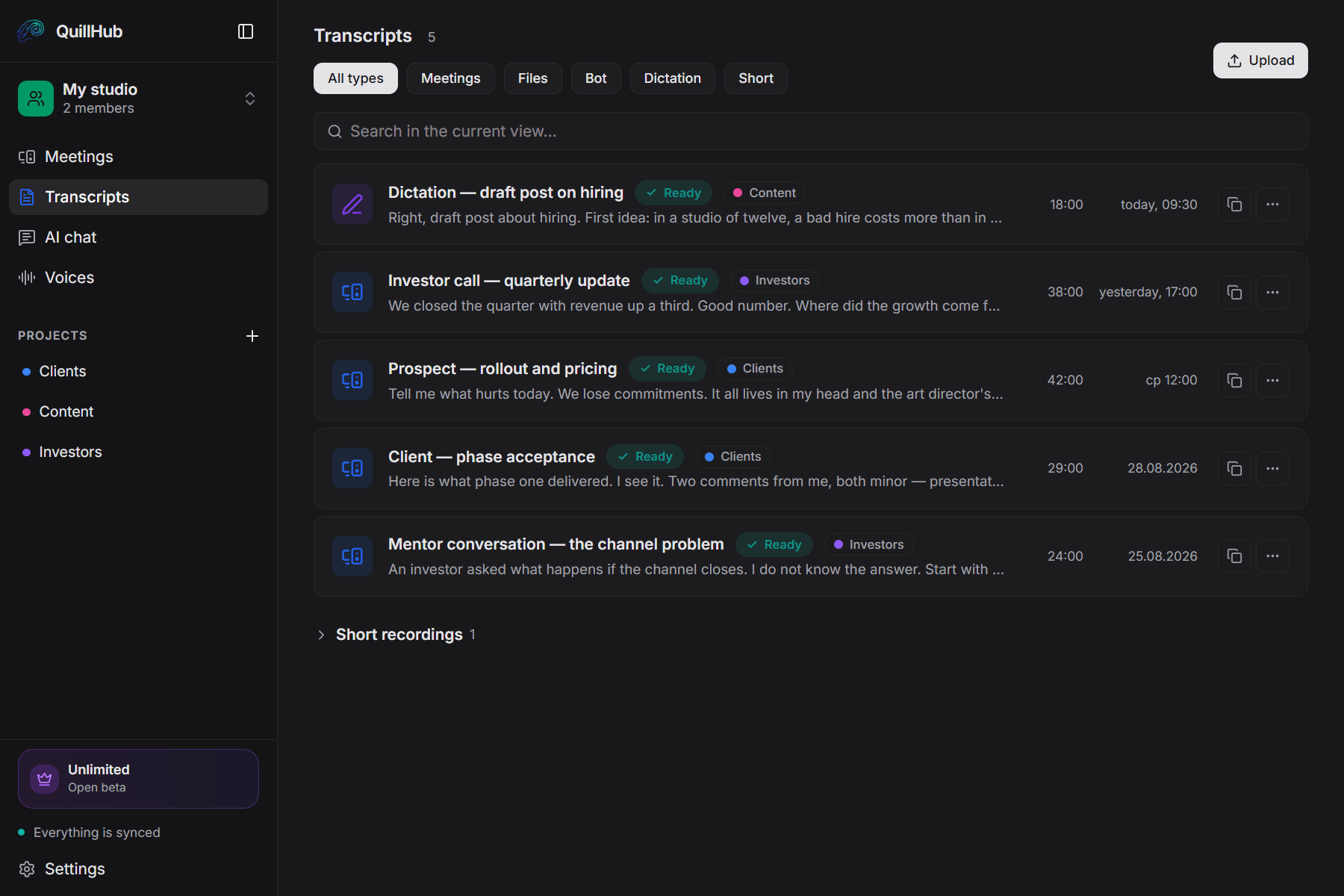
List of recordings and dictations in the QuillHub Desktop app

Sample transcript

What 5 minutes of spoken email tips look like as text

Real QuillHub output with no manual edits: 5 minutes 1 second of recording, punctuation and paragraphs added automatically, with timestamps in the text. Above the text: chapters and a summary. Switch the tabs to see each layer.

5 Tips for Writing Emails That Convert00:00 / 5:01 · Host, ShowMeHowToDoThisReady · 4 documents
  • Host, ShowMeHowToDoThis0:00

    If you are going to be selling anything, at some point you're probably going to want to sell it with email. Here are 5 tips for writing good emails that will get people to buy or take an action. The first thing is do a good job writing. Now you might not be a great writer, but one great tip for getting your writing to be better is simply to write content that relates to people. And the best way to do this is to write it as though you're writing an email to a friend. So, hey Tom, just wanted to let you know that I was working on something the other day and I came across this really helpful idea. If you go to whatever, you can save money, blah, blah, blah. If you write an email so that it's conversational as though you're writing an email to a friend, that email will be much better received. The second tip is to segment the people who have subscribed to your list. Now there's a lot of different ways to do this. This is a short video so I'm not going to go into everything about market segmentation But you might want to segment by people who have bought a certain product in the past.

  • Host, ShowMeHowToDoThis2:44

    This is just one article. There's literally hundreds of articles to get good subject lines, 5 email subject line strategies. So just come up with some good subject lines and then bounce them off of some people before you send it out. The 4th tip I have for you is to be brief. This isn't to say that you should write things very short, but if you can say something with 8 words instead of 20 words, people People are busy and they're much more likely to read what you have to say if you can be brief about it. So when you write your subject line, make sure to write something brief. Include your point, but just write it in as few words as you can. 5th tip I have for you, a call to action is what you want someone to do after they read your email. It might be go visit this website, it might be download this report, it might be anything really, but you want to include a call to action so that they're not just receiving your email and going, oh, that was interesting, and then clicking away. No, you want to put something in there like to get your free report or to save on this particular deal or to make money by hanging out in your underwear at home or whatever it is that fits your market.

10 more paragraphs, each with a timestamp; click a timestamp to jump the audio there

Continuous speech, now readable text

Basic speech recognition returns a stream of words with no periods or paragraphs. Here the punctuation is in place, the text is split into paragraphs, and each one has a timestamp, so you can read it instead of transcribing it again.

  • Punctuation and paragraphs added automatically
  • Export to TXT, DOCX, SRT, and VTT
  • 0:00Introduction and Overview of Email Tips1 min
  • 1:24Writing Effective Subject Lines and Keeping It Brief2 min
  • 3:16Calls to Action and Using 'You' for Better Conversion1 min
  • 4:30Conclusion, CTA and Next Steps1 min

Each chapter has its own timestamp and length

The whole 5 minutes 1 second at a glance

Chapters follow the meaning, not the pauses, so you can see what each part of the recording covers and jump to the one you need.

  • 4 chapters across 5 minutes 1 second
  • Each chapter links to its place in the recording

A short how-to explaining six practical tips to improve marketing emails: write conversationally, segment your list, craft effective subject lines, be brief, include a clear call to action, and use the word “you” to increase engagement.

  • Write emails in a conversational, friend-like tone to increase receptiveness.
  • Segment your email list to send targeted messages to specific groups.
  • Create compelling subject lines that spark curiosity and match the audience.

What the AI pulled out

  • Treat email copy as if writing to a friend to make it more relatable.01
  • Segmentation examples: past purchasers, non-buyers, age or location filters.02
  • Study and test subject lines; use curiosity and personalization (e.g., 'Hey Jim').03
  • Brevity increases the likelihood that recipients will read the message.04
  • Call to action examples: visit a site, download a report, claim a deal.05

No need to replay 5 minutes 1 second

The summary is built from the broadcast itself: key ideas, numbers and the decisions that were actually announced. It can go into a team chat as it is.

  • 5 main ideas from the recording
  • 6 key points in the full summary
One-page digest

Bonus tip: repeatedly address the reader with 'you' to boost response.

from the recording
Article draft

“5 Tips for Writing Emails That Convert”: email marketing, copywriting, segmentation

from the recording
Follow-up email

What was discussed, what was decided, what happens next

template
Task list

Write emails in a conversational, friend-like tone; Segment the subscriber list (by past purchases, demographics, location, etc.)

from the recording
Ask the recording

“Generate 10 subject line variants for a product launch”: the chat answers from the text and gives the timestamp

chat
Your own prompt

A CRM note, a post, talking points — or any format you need

anything
  • Segmentation
  • Subject line
  • Call to action
  • Personalization

Every AI action is included in the Unlimited plan — no credits per click.

Finished documents on top of the text

The transcript is only the start. From one recording you can build a digest, an article draft or an email — or describe a format of your own.

  • Ready-made templates and your own prompts
  • Chat over the recording: ask anything about the text
  • 4 terms with definitions
Upload your recordingSee the full example(opens in a new tab)60 free minutes when you sign up · No card required

Example: How To Write Good (Effective) Emails Well (In English), Strive4impact, YouTube, license CC BY 4.0. Transcript, chapters, summary and key points by QuillHub.

How it works

How to dictate on Windows with QuillHub

Windows has its own voice typing on Win+H. QuillHub Desktop is just as quick to start, and it keeps everything you dictate. Setup takes a couple of minutes.

  1. 1

    Install QuillHub Desktop

    Download the Windows installer and sign in. Windows asks for no extra permissions: it requests microphone access the first time you dictate.

  2. 2

    Click into a text field and press Ctrl+Space

    Put the cursor where the text should go: a Word document, an Outlook email, a chat, a form on a website. Press Ctrl+Space and speak. Words appear in the dictation window as you talk.

  3. 3

    Click Insert into window

    The text goes where the cursor was. If no field was selected, it is already on the clipboard: paste it with Ctrl+V. Either way, the dictation is saved to your archive.

No install

Can't install apps? Dictate in the browser

On a work PC, IT often blocks new software. Open the Microphone tab instead: record your voice right in the browser and start the transcription. The text appears in your account, ready to copy into Word. You can also upload a recording you already have.

Click microphone to start recording

60 free minutes when you sign up · No card required

  • Google Drive
  • Direct file link
  • Files MP3, M4A, WAV, OGG, WEBM

What you get

What you have after dictating on your PC

Built-in voice typing prints a line and forgets it. QuillHub turns what you said into readable text and keeps it.

Text in the right window

Insert works in any app that accepts typed text: Word, Excel, Outlook, Slack, Teams chat, a browser, your CRM. No switching between windows.

Periods, commas, and paragraphs

You don't say “period” or “comma”: punctuation is added for you. When the dictation is saved, AI reads it once more and splits it into paragraphs without changing your words.

The clipboard as a backup

If an app doesn't accept the paste, the text isn't lost. It sits on the clipboard, and QuillHub reminds you to paste it with Ctrl+V.

A copy of the audio on disk

While you dictate, the sound is also written to a file on your PC. If live transcription isn't available, QuillHub transcribes that file after you stop, and the text appears in your list.

An archive with titles

Every saved dictation gets a short title based on what you said. A week later, you find the email you dictated by search instead of scrolling.

A summary of a long monologue

For 10 to 30 minutes of thinking out loud, use Record a note in Desktop. The whole recording is transcribed with a summary and chapters. Notes under 5 minutes wait in Short recordings until you send them.

AI for your dictations

Ask a week of dictated emails one question

You dictate emails and notes all day, and a week later you can't remember what you promised to whom. Ask the archive, and the answer links to the dictation it came from.

Dictated memo · 1 voice05:40
What deadlines did I give in the office move memo?

Two: the inventory check by October 14, and moving the shelving over the weekend of October 19–20. You added that the shelving needs a second truck.

Office move memo · 02:10 — the fragment is lit on the track
Did I already email the supplier about the new dates?

Yes, in Monday's dictation “Email to supplier”: you asked to push the delivery back a week and send a new invoice.

Email to supplier · dictation
office move · deadlines
supplier · delivery
01

Questions across all dictations

The chat answers from your whole archive at once and links to the recording each answer comes from.

02

Text in the format you need

Summarize, Follow-up, and Tasks buttons in the chat, or your own prompt: “turn this into a formal email.”

03

Access for your AI agents

The MCP server lets Claude and other AI agents read your notes directly.

Every AI action is included in the Unlimited plan — no credits per click.

Compare

Windows voice typing, voice access, Word, and QuillHub compared

Windows already has speech to text built in, and for a few sentences it's enough. Here is how it differs from voice access, Word's Dictate button, and QuillHub. Microsoft's terms are taken from Microsoft Support as of November 2026.

ToolHow to startPunctuation and languagesWhat you keepLimits
Windows voice typingWin+H in any text box, Windows 10 and 11Automatic punctuation is a setting; otherwise say “period” or “comma.” English, Spanish, and many other languagesOnly the text in the fieldNeeds an internet connection. Fluid dictation, which cleans up grammar and filler words, is only on Copilot+ PCs
Windows voice accessTurn on in Accessibility settings; wake it with “Voice access wake up”Automatic punctuation is an option; you can add your own words to its vocabularyOnly the text in the fieldWindows 11 22H2 and later. Built to control the whole PC by voice, so it has many commands to learn. Works without internet
Dictate in WordHome > DictatePunctuation by voice commands: “period,” “comma,” “new line”Text in the documentMicrosoft 365 subscribers only, inside Word only, internet required
Google Docs voice typingTools > Voice typing in Chrome, Edge, or SafariPunctuation by voice commandsText in the Google DocDoesn't type into Word or other apps
QuillHub in the browserMicrophone tab or the Dictation screen, nothing to installLanguage detected automatically, punctuation added for youText with paragraphs in your archive; a summary and chapters for longer recordingsYou copy the text yourself; needs an account
QuillHub DesktopCtrl+Space in any app; the shortcut can be changedLanguage detected automatically, punctuation added for you, mixed languages in one dictationText in the field, a copy in your archive, and the audio file on diskNeeds installing and an internet connection. Apps run as administrator get the text via Ctrl+V

Where dictation saves the most time on a PC

Voice to text pays off where you type a lot of similar text every day.

Documents in Word

A memo, a report, a proposal. Dictate the draft in whole paragraphs and leave formatting and edits for later.

Email in Outlook or Gmail

A long reply to a client is faster to say than to type. Cursor in the message body, Ctrl+Space, and a minute later the email is ready to proofread.

Chat apps on your desktop

Slack, Teams chat, WhatsApp for Windows. Instead of a voice message, the other person gets text, which is faster to read than to listen to.

CRM notes and tickets

Call notes in a customer record, a bug report in Jira, a comment on a task. A web form accepts the paste just like Word does.

Spreadsheets and notes

A comment in an Excel cell, a note in OneNote or Notion. The text lands in the cell or line where your cursor is.

Thinking out loud

A talk outline or a half-hour walk through a problem works better with Record a note: you get text with a summary and chapters.

Who it's for

Who uses dictation on a Windows PC

Most offices run on Windows. These are the people who save the most keyboard hours by dictating into any app.

Lawyers and document writers

A contract starts as a dictated draft

A position on a case, contract terms, a reply to a claim: the thought is ready before you can type it. By voice, the Word draft takes minutes, and your time goes into the wording.

  • Dictation straight into a Word document
  • Punctuation without voice commands
  • An archive of drafts with search

HR and recruiting

Candidate feedback right after the interview

After the fourth interview of the day, impressions blur. Two minutes of speech into the candidate's profile while the conversation is fresh, and your notes stay accurate.

  • Text goes straight into your ATS or spreadsheet
  • Emails to candidates without typing
  • Desktop can also record the interviews themselves
QuillHub for HR

Customer success and support

A detailed reply to a customer in a minute

Long answers in tickets and chats take the most time. Explaining out loud is faster than typing, and the text goes right into the reply box.

  • Ctrl+Space in the ticket or chat window
  • Follow-up button in the chat for the dictation
  • Search through past replies in your archive
QuillHub for customer success

Project managers

Status updates dictated between meetings

A weekly report, comments on tasks, a recap for the team. All of it is easier to say than to piece together from scraps before you log off.

  • Text into Jira, your tracker, or a team email
  • Tasks button in the chat for the dictation
  • Ask the chat about all of the week's dictations
QuillHub for project managers

Tips

How to get more accurate voice to text on Windows

Most voice typing problems on Windows come down to the microphone and keyboard shortcuts. Here is what to check.

  • Check microphone access

    If the dictation window opens but no text appears, Windows may be blocking the microphone. Go to Settings > Privacy & security > Microphone and allow access for desktop apps.

  • Ctrl+Space taken? Change the shortcut

    In Word, Ctrl+Space clears character formatting; in code editors it opens suggestions. While QuillHub Desktop runs, the shortcut belongs to dictation. If you need it, give dictation another one in Settings.

  • Apps run as administrator

    Windows doesn't let other programs paste into a window started with admin rights. Your dictation is still on the clipboard: press Ctrl+V yourself.

  • Keep the microphone close

    A laptop's built-in mic picks up the fan and the keyboard. A headset or a mic near your mouth cuts recognition errors, especially in names and terms.

  • Speak in full sentences

    Speech recognition relies on pauses. A whole sentence comes out more accurately than separate words with long stops.

  • For a few words, Win+H is enough

    Built-in voice typing is fine for a short reply. QuillHub is worth it when there is a lot of text and you need paragraphs and an archive.

Beyond Windows

Also works in Telegram

In Telegram Desktop for Windows, Ctrl+Space works as in any other app: the text goes into the message field. On your phone, send a voice message to @QuillAI_Bot, and it replies with the text. Link Telegram to your account, and transcripts from the bot appear in the same archive.

Open @QuillAI_Bot
  • Ctrl+Space in the Telegram Desktop message field
  • Voice message to the bot from your phone, text back
  • After linking, minutes and plan are shared with the website

Pricing

The more you record, the cheaper the hour

Start free, pay only when you need more.

Our lowest price
Unlimited

from$6.66per month

Six months of unlimited — $39.99 up front. Minutes are not counted at all.

Get Unlimited

Six months — $39.99, billed once.

What $6.66 a month works out to

10 hours$0.67/hr
20 hours$0.33/hr
50 hours$0.13/hr

The same $6.66 in one-off packs buys about 500 minutes — roughly eight hours. Then they run out; Unlimited doesn’t.

Month by month the same half-year would cost $59.94 — a $19.95 difference.

One-off minute packs
from $2.99
Not a subscription. Minutes never expire and stack with your balance.
150 minutes — $2.99350 minutes — $4.99750 minutes — $9.992,950 minutes — $29.99

The minute gets cheaper with volume: from $0.020 in the smallest pack to $0.010 in the largest.

Start
$0
60 minutes when you sign up
  • 60 minutes to try, they don't expire
  • All languages and speaker recognition
  • Export to a document
  • No card required
Get started
Team

A shared workspace, projects and roles. Invoice billing and paperwork for companies.

$14.99per seat, per month
Start a team

FAQ

Dictation on Windows: frequently asked questions

Didn't find your answer? Contact support.

It is a program that turns your speech into text on a Windows PC: you talk into a microphone, and it types the words into the active field. Windows 10 and 11 have voice typing built in (Win+H). QuillHub Desktop adds automatic punctuation, an archive of dictations, and a copy of the audio on disk.

After you press Ctrl+Space, the microphone audio streams in small pieces to a speech recognition model, and words appear in the dictation window almost at once, already punctuated. At the same time, the audio is written to a file on your disk. When you save the dictation, a language model reads the text once more, splits it into paragraphs, and gives it a title without rewriting your words. A longer recording made with Record a note gets a full transcription with a summary and chapters (by default, notes under 5 minutes wait in Short recordings until you send them).

Built-in voice typing starts with Win+H: click into a text box, press Win+H, wait for “Listening…” and speak. You need a working microphone and an internet connection. For automatic punctuation, turn it on in the voice typing settings (the gear icon); otherwise, say punctuation out loud: “period,” “comma.” In QuillHub Desktop, Ctrl+Space does the same job, and punctuation needs no commands.

Check three things. The cursor must be in a text box before you press Win+H. Windows voice typing needs an internet connection. And the microphone must be allowed in Settings > Privacy & security > Microphone, with the right device chosen as the default. The same checks apply to QuillHub Desktop.

There are three ways. Home > Dictate works if you have a Microsoft 365 subscription. Win+H works in any version of Word on Windows 10 and 11. In QuillHub Desktop, click into the document, press Ctrl+Space, speak, and click Insert into window. Note that in Word itself Ctrl+Space clears character formatting, so you may want to give dictation another shortcut.

Voice access is an accessibility feature of Windows 11 (version 22H2 and later) that lets you control the whole PC by voice: open apps, click buttons, browse, and dictate text. It works without an internet connection. If you only need to type by voice, voice typing (Win+H) or QuillHub Desktop is simpler, since there are fewer commands to learn.

Yes. Voice typing (Win+H) comes with Windows 10 and 11 at no cost. QuillHub Desktop is a free download: the first meeting you record and sync starts 14 days of full access with no card, and that includes up to 10 hours of dictation. Dictating in the browser uses the 60 free minutes you get when you sign up.

Voice typing prints a line and remembers nothing. QuillHub adds punctuation without commands, splits long text into paragraphs, and keeps every dictation with a title and search. The audio of each dictation stays in a file on your PC, and you can ask the AI chat questions about your archive.

QuillHub detects the language on its own: English, Spanish, and many others, and in a Ctrl+Space dictation you can even switch languages mid-sentence. Windows voice typing supports a fixed list of languages; you switch between them with Win+Spacebar.

Not with QuillHub or Windows voice typing: both send speech to the cloud for recognition. Windows voice access works offline, but it is built for controlling the PC rather than for long text. If the connection drops during a QuillHub dictation, the audio is still saved in a file on your computer, and you can upload it for transcription later.

Usually the cursor wasn't in a text field before you started, or the app is running as administrator: Windows doesn't let other programs paste into such windows. In both cases the text is already on the clipboard, so press Ctrl+V.

QuillHub Desktop is free to download. The first meeting you record and sync starts 14 days of full access with no card, and that includes up to 10 hours of dictation. After that, Unlimited is $9.99 a month, and minute packs start at $2.99.

Only you and the people you share a link with. For live text, the audio goes to Gladia (EU) for recognition, and a copy of the recording stays on your computer. Transcripts are encrypted in transit and at rest, and share links are off until you turn them on.

Your data

What happens to your recordings

Doctor's appointments, legal consultations and therapy sessions go through QuillHub. That is why we say this plainly instead of burying it in the terms.

Who processes your data

Encryption — files and transcripts are encrypted in transit and at rest, and only you and the people you share a link with have access.

Never used for training — recordings are not used to train models and are not passed to third parties.

Delete anytime — a recording can be deleted at any moment, together with its transcript and everything derived from it.

Transparent subprocessors — the list of services involved in processing is published on its own page.

Try dictation software for Windows free

QuillHub Desktop: Ctrl+Space in any app, 14 days of full access with no card, with up to 10 hours of dictation. Without installing, dictate in the browser: 60 free minutes when you sign up.